User Settings Tab
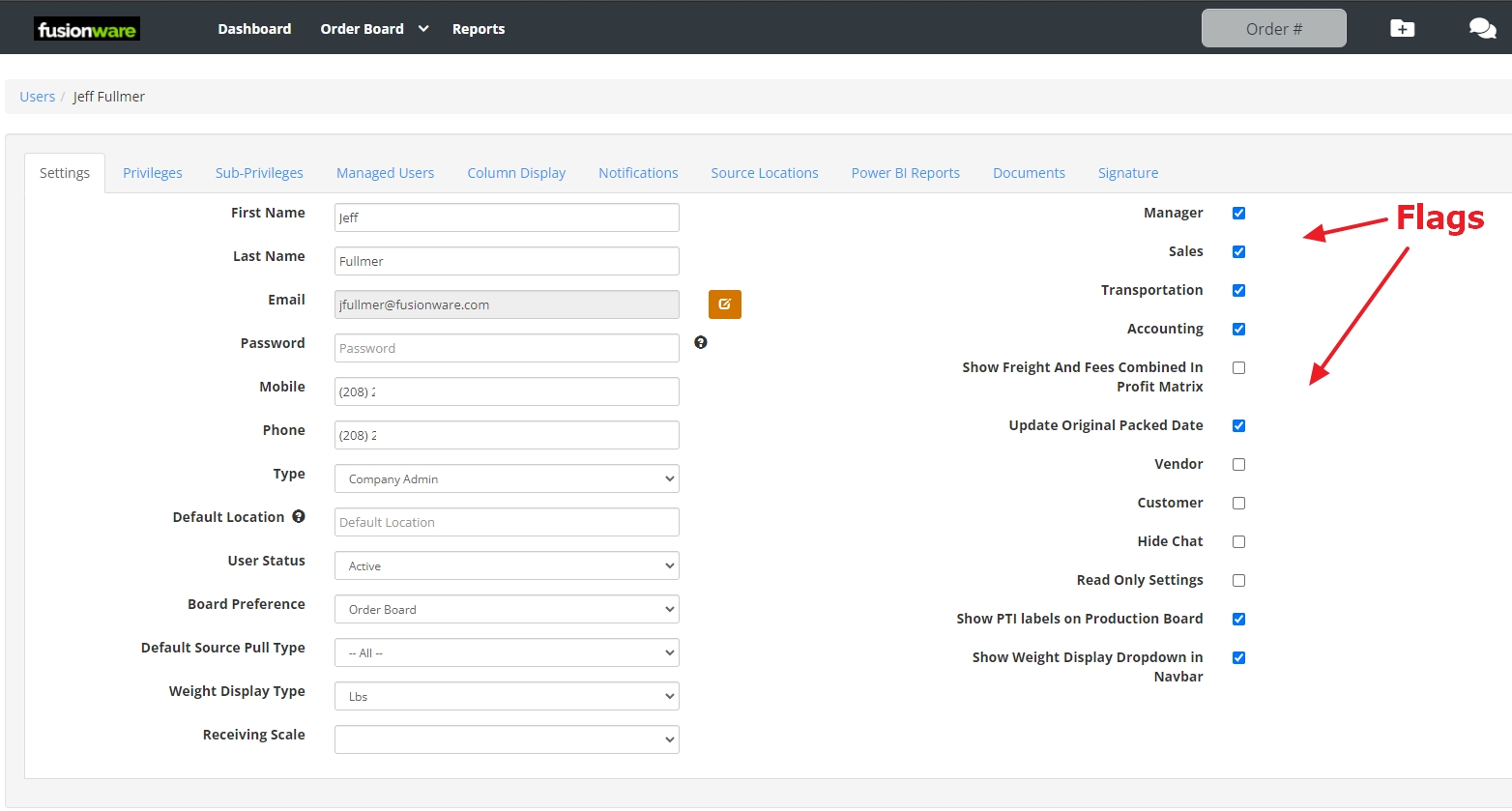
The Users > Settings tab (Settings > Misc. > Users) is the first tab on a user’s edit screen — sometimes referred to as the “User Settings” tab — and covers the account’s core profile, login, and role-based display fields. A handful of fields and flags below are only visible to editors with admin-level accounts (Company Admin or higher); a Company User editing another account may see a shorter list than what’s documented here.
| Field Name | Description |
|---|---|
| General Fields (Left Side) | Core profile, login, and display preferences for the account |
| First Name | Enter the first name of the user |
| Last Name | Enter the last name of the user |
| The user’s login email address. Shown as read-only with an “edit” (pencil) button that opens a separate “Change Email” screen; only visible to admin-level editors | |
| Password | Sets the user’s login password. Must meet your company’s configured password policy — the exact length, uppercase, and special-character requirements are shown in the tooltip next to the field; only visible to admin-level editors |
| Mobile | Cell phone number; required if the user is signing documents. Locked if the user has SMS-based multi-factor authentication enabled — contact support to update it in that case |
| MFA Status | Shows whether multi-factor authentication is set up for the user (“Setup,” “Enabled,” or “Not Enabled”). Admins can turn MFA off for the user directly from here |
| Phone Number | Enter the phone number of the user |
| Type | Sets the user’s role/permission level (e.g., Company Admin, Company Users). Shown as a read-only field to editors who aren’t a Company Admin or higher |
| Default Location | Sets the default location for the user on the inventory report |
| User Status | Marks a user as Active or Inactive |
| Board Preference | The board the user is in most frequently; used as their default board |
| Default Source Pull Type | Sets which section(s) of the Source Board (Receiving, Inventory, Storage, Manual, or All) are expanded by default when this user opens it |
| Receiving Origin Type | Locks the “Origin Type” field to Field or Storage whenever this user creates a new receivable, so they can’t create records against the other type. Leave on “– All –” to let them choose either |
| Weight Display Type | Sets which unit of measure this user prefers weights to be displayed in |
| Receiving Scale | Assigns the user’s default scale device, used to pull weight automatically when they create receiving records |
| Flags (Right Side) | Checkboxes that turn on account-wide roles and display behavior |
| Manager | Filters the AR/AP Report to the users this manager is in charge of. Only visible to admin-level editors; locked once the user being edited is themselves a Company Admin |
| Sales | Shows this user’s name inside the order details as the Sales Person |
| Transportation | Shows this user’s name inside the order details as the Booked By person |
| Accounting | Grants the accounting role: enables invoice date/time fields on orders, shows invoice-related columns and buttons in the product/freight-fee matrix, and unlocks several financial-adjustment actions that are otherwise blocked for non-admin users |
| Show Freight And Fees Combined In Profit Matrix | Combines the freight and fee rows into a single row on the order’s profit matrix instead of showing them separately |
| Update Original Packed Date | Lets the user edit the “Original Packed Date” field on an inventory record; otherwise that field is locked. Only visible to admin-level editors |
| Vendor | Marks the user as a vendor-type account, which hides most pricing, quantity, and internal comment columns and buttons throughout order screens. Only visible to admin-level editors |
| Customer | Marks the user as a customer-type account, which hides internal-only order details (documents, comments, driver mobile numbers, pricing columns) the same way the Vendor flag does. Only visible to admin-level editors |
| Hide Chat | Hides the chat icon in the top navbar for this user |
| Read Only Settings | Locks most Settings pages (Products, Locations, Storages, Carriers, Companies, and similar) into a view-only state for this user — they can see the data but can’t edit it |
| Show PTI Labels on [Advanced] Production Board | Adds a case-label/PTI-label selector column to the Production (or Advanced Production) Board for this user. The exact label shown depends on which board role the user has |
| Show Weight Display Dropdown in Navbar | Adds a weight-unit dropdown to this user’s top navbar so they can switch their displayed unit of measure on the fly |