Scales
To integrate truck or production line scales with Fusionware please contact Customer Support
- Fusionware can receive weight from truck scales and most digital scales with an electronic indicator that broadcasts weight over ethernet or serial port
- We may need to install a small piece of hardware, depending on your scale and network
| Scale Settings |
Image - Click To Expand |
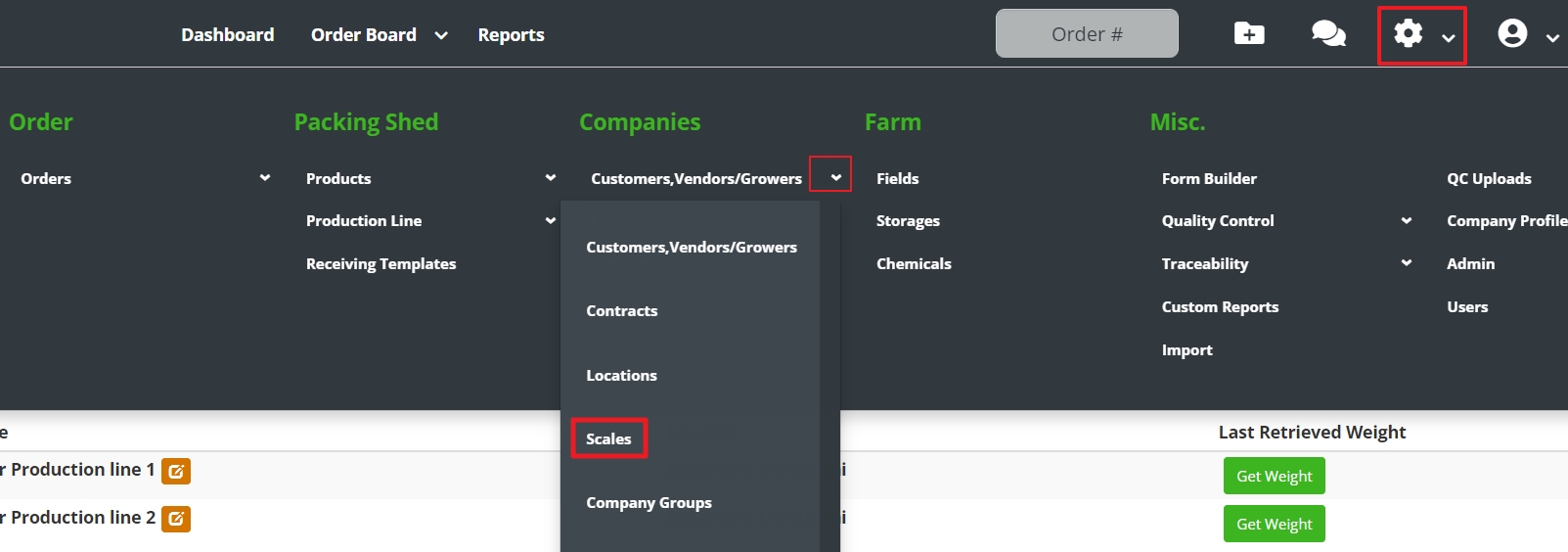
| Settings > Customers,Vendor/Growers > Scales |
 |
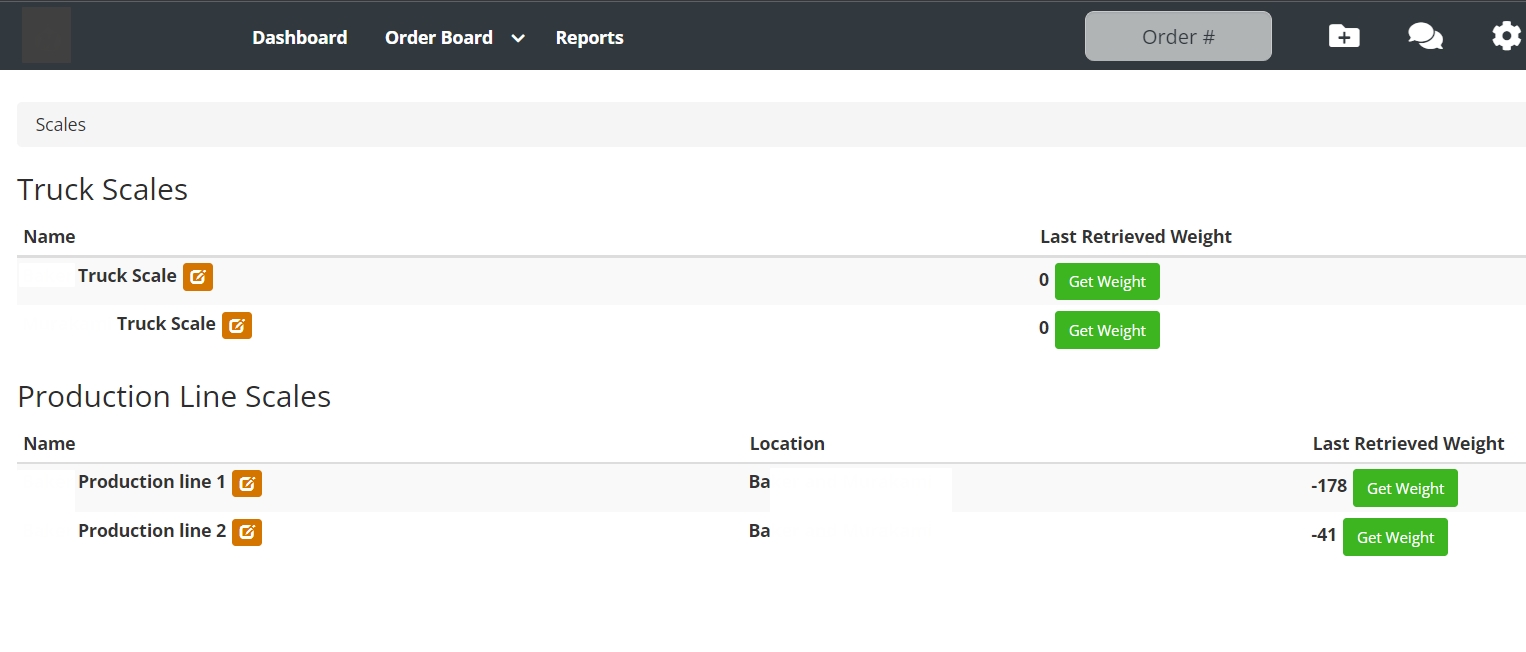
| Scales Settings: Truck Scales & Production Line Scales |
 |
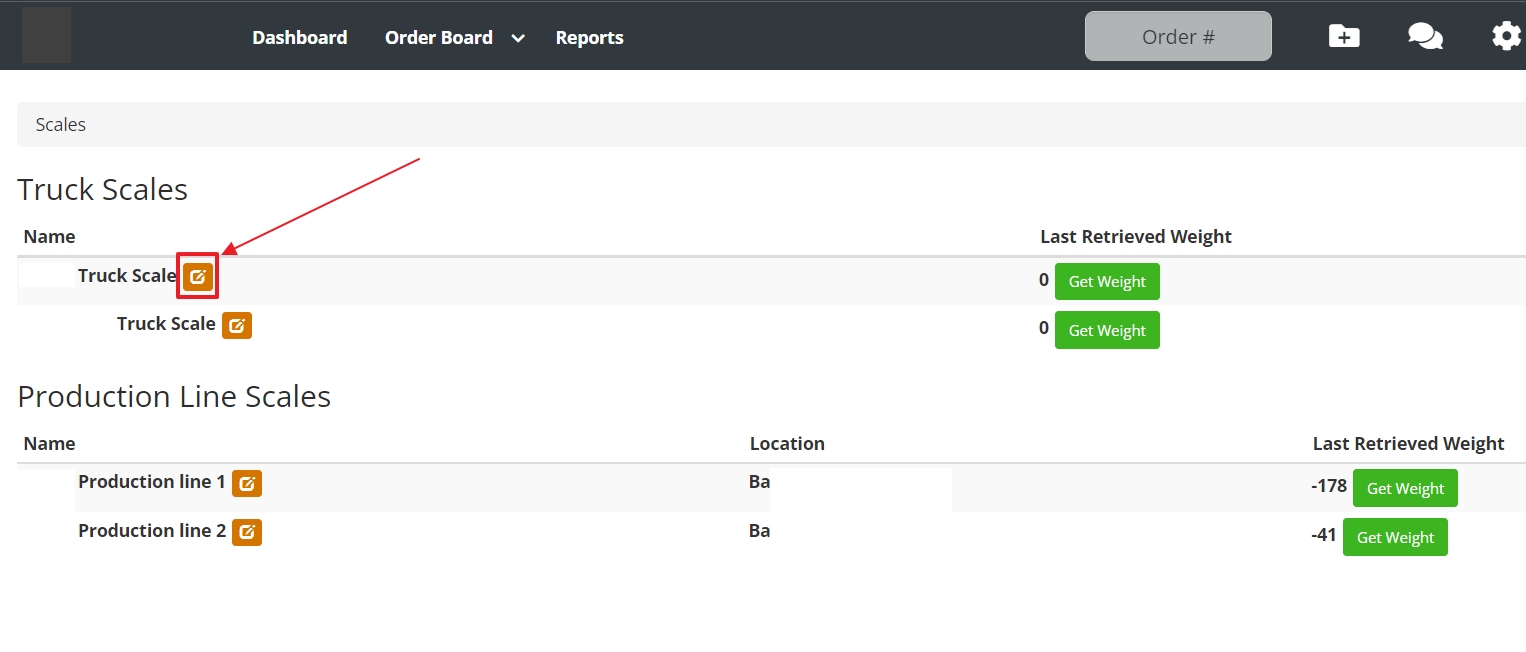
| Scale Name Edit Option |
 |
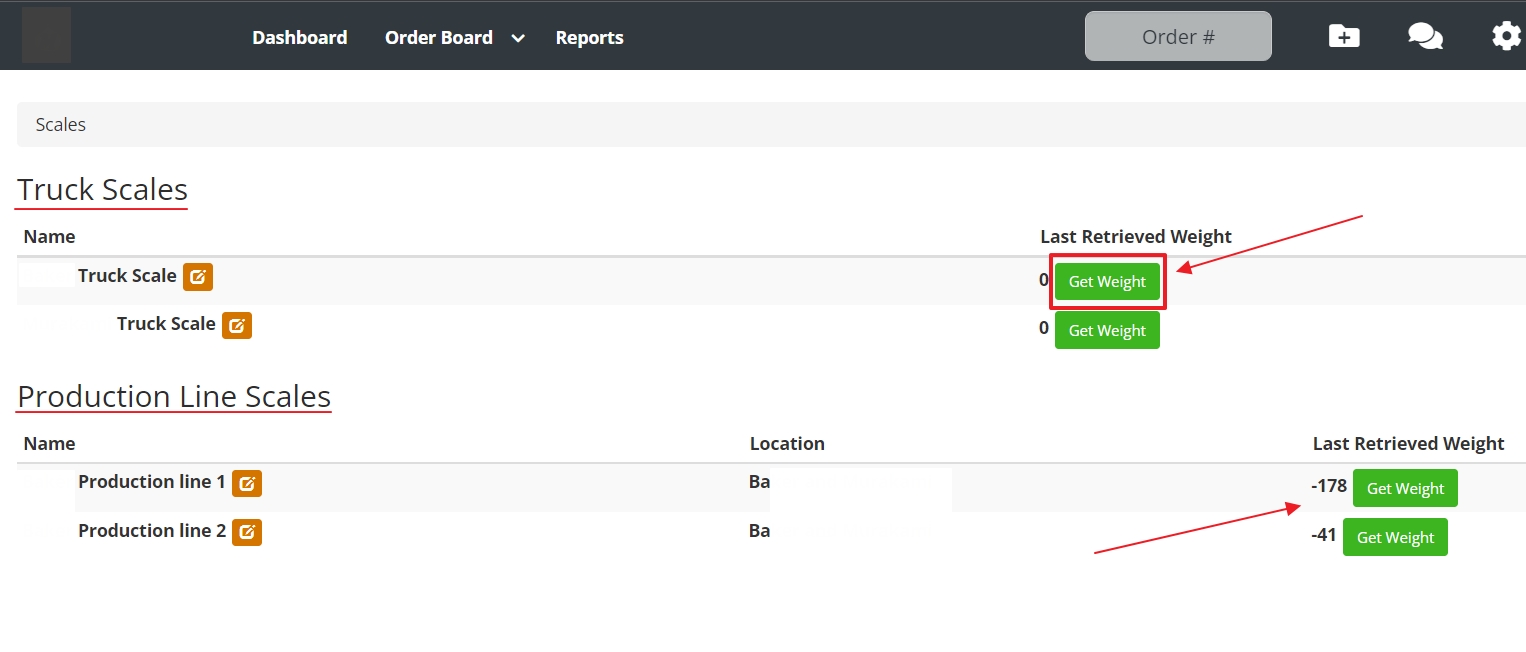
| Test The Get Weight Function: If there is weight on the scale it will show up |
 |
| Receiving Scales |
Image - Click To Expand |
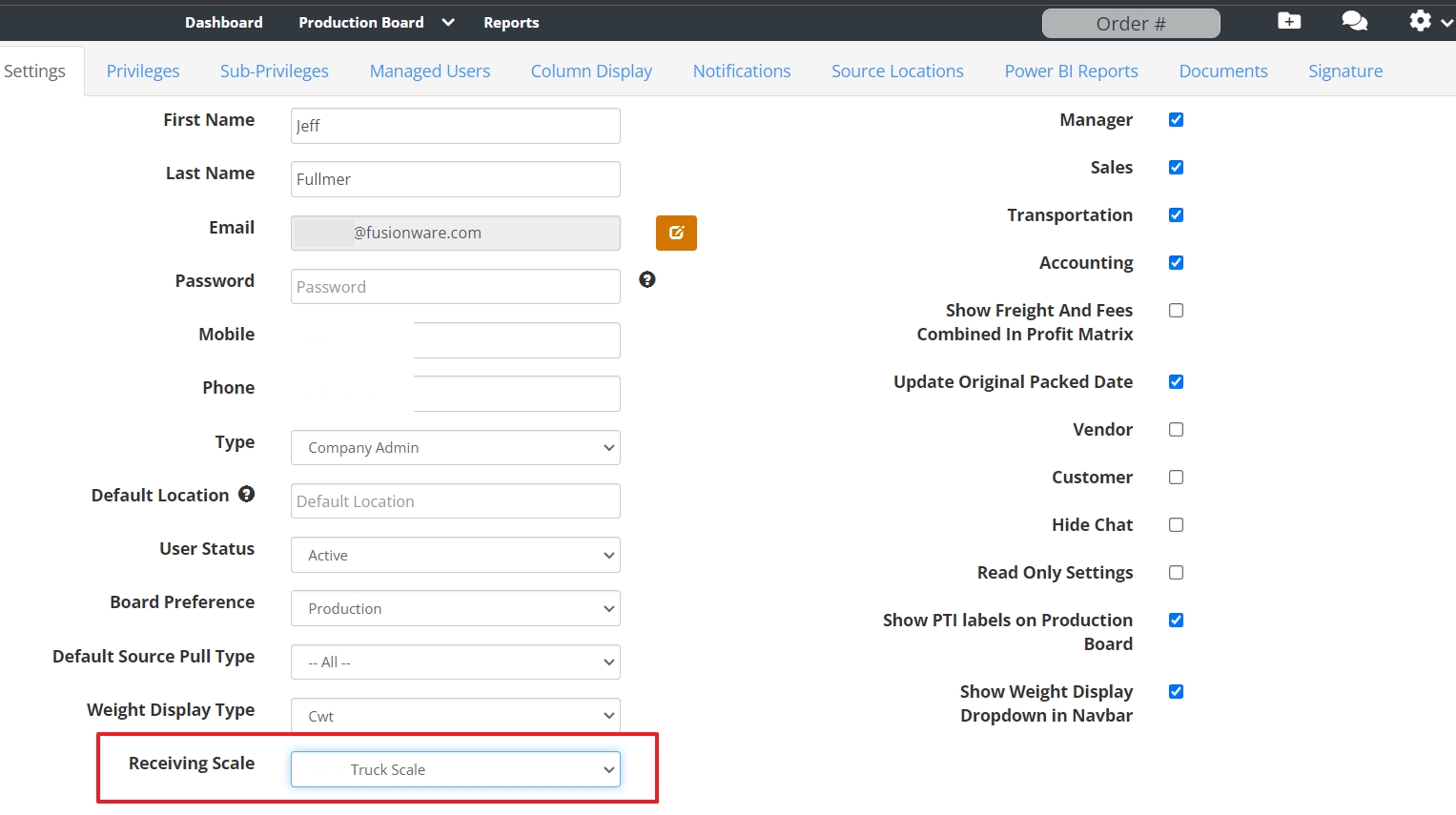
| User Setup: To use the scale function in Receivings, the scale must be added to the user’s profile |
 |
| Location Scale Setup: (1) Go to Locations and select the Destination with a scale. (2) Select the Scales tab. (3) Select the scale add with the green plus. |
 |
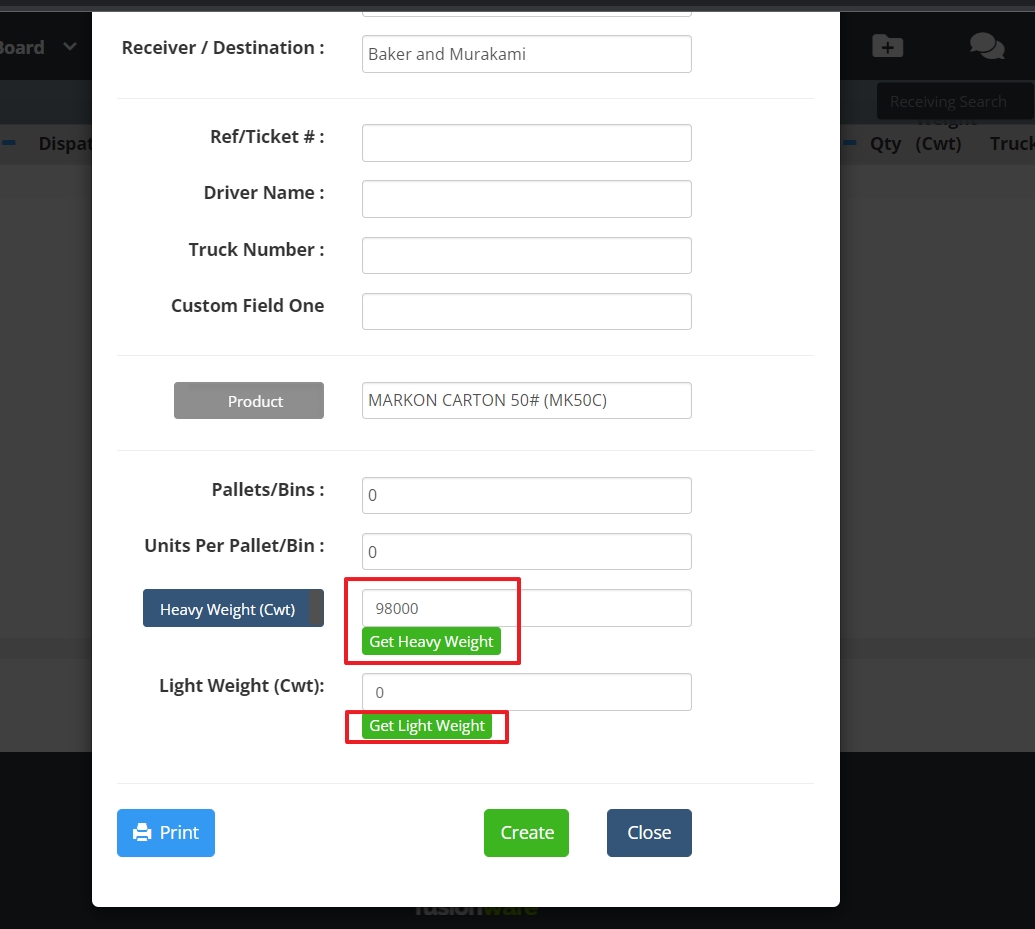
| Add Receiving: If the Receiver/Destination has a scale tied to it, the Get Weight function will show up on the receiving |
 |
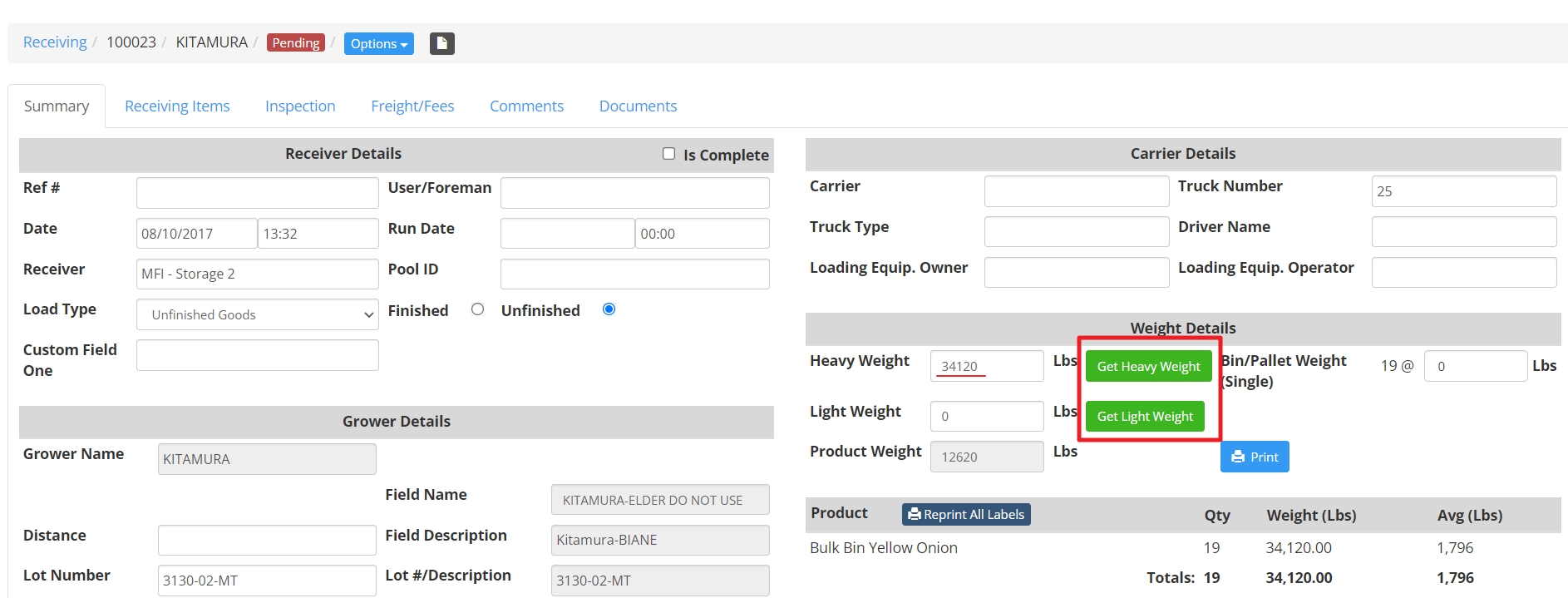
| Receiving Details: The Get Weight function also will show up in the receiving details after the receiving has been created |
 |
| Shipping Scales |
Image - Click To Expand |
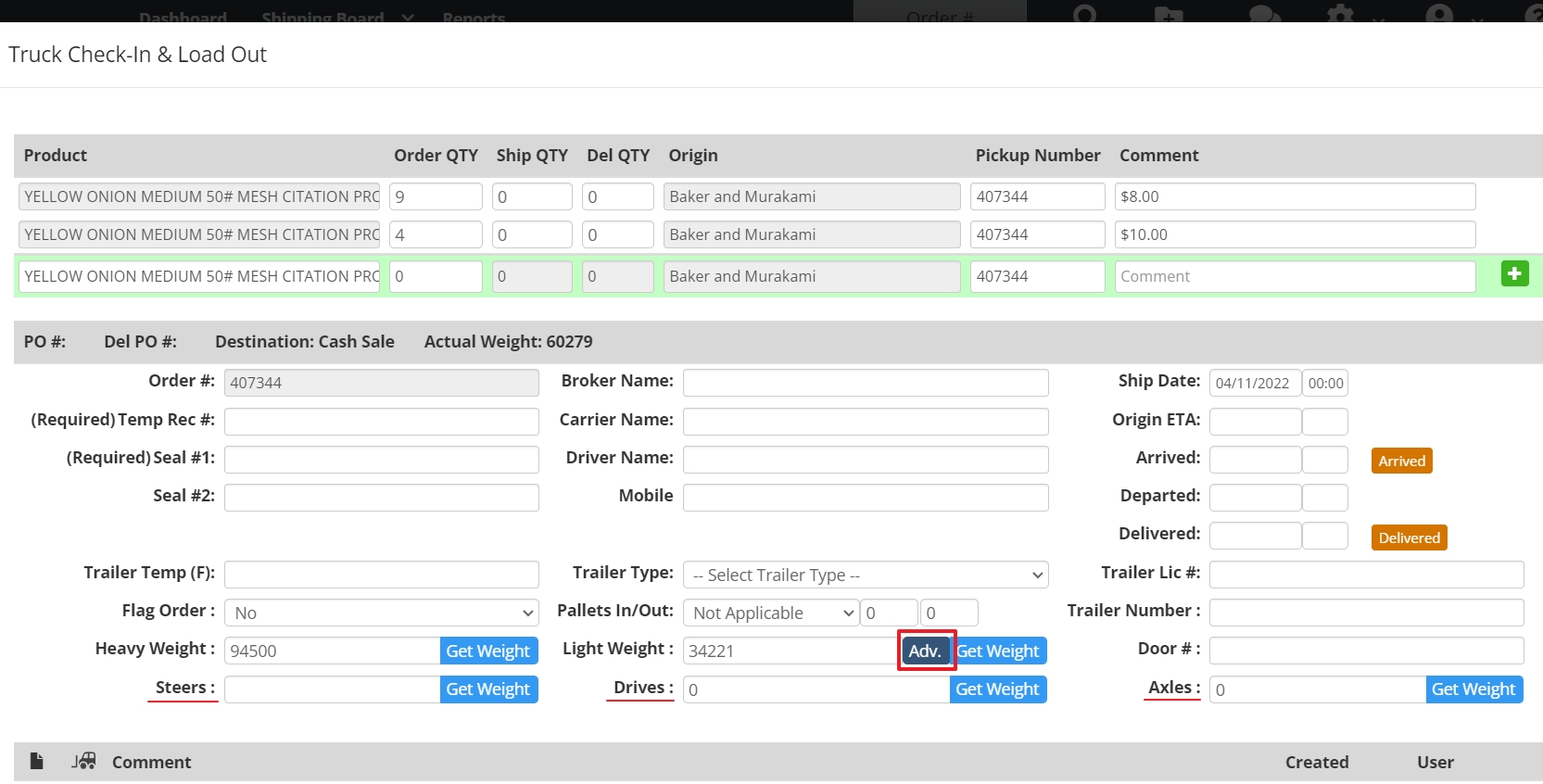
| Shipping Truck Check-In & Load Out: In the Shipping Board, when looking at an order, you have the option to get weight from a scale |
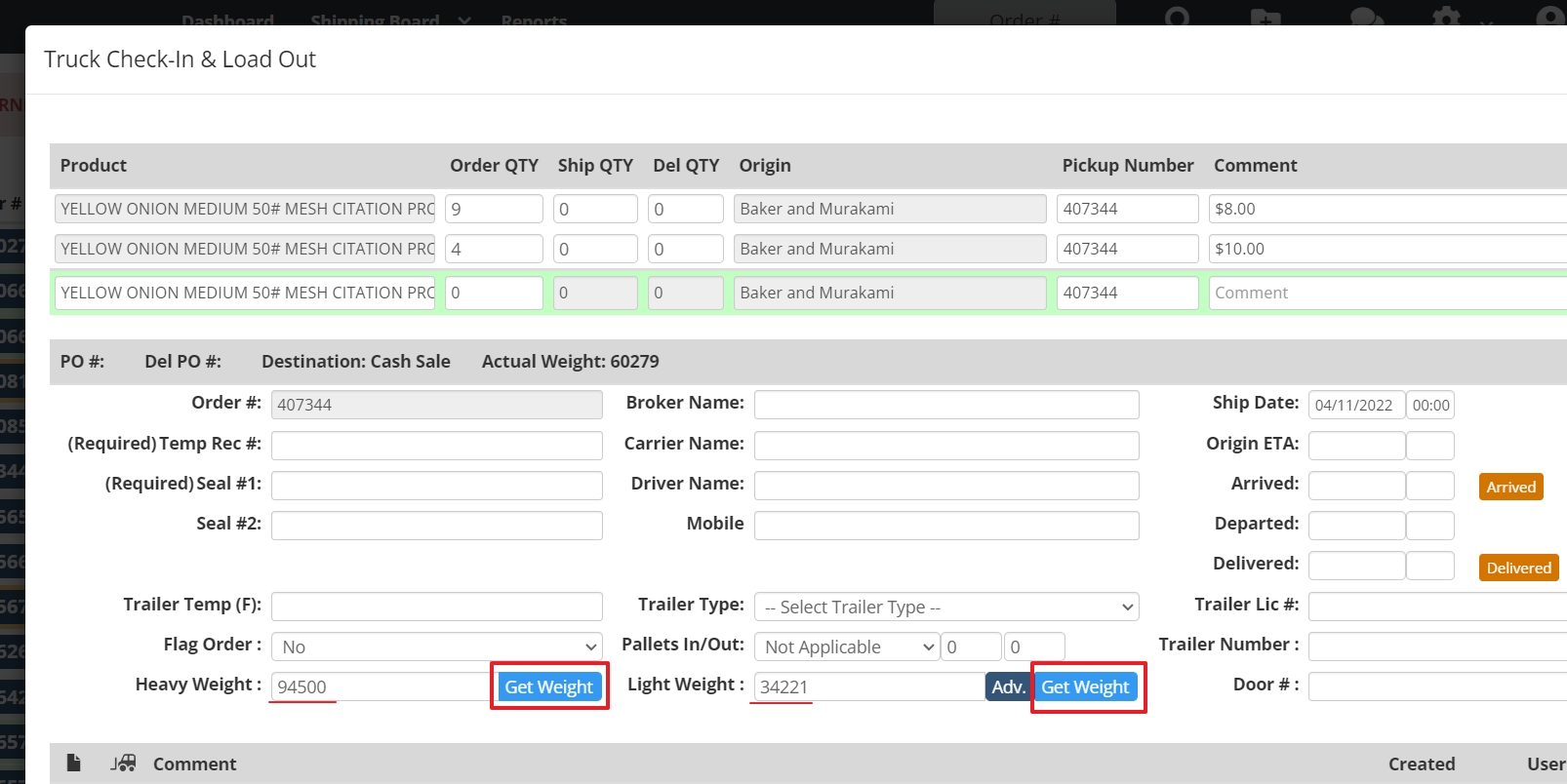 |
| Adv. Button: Allows the option to get weight for Steers, Drives, or Axle weights |
 |
| Production Line Scales |
Image - Click To Expand |
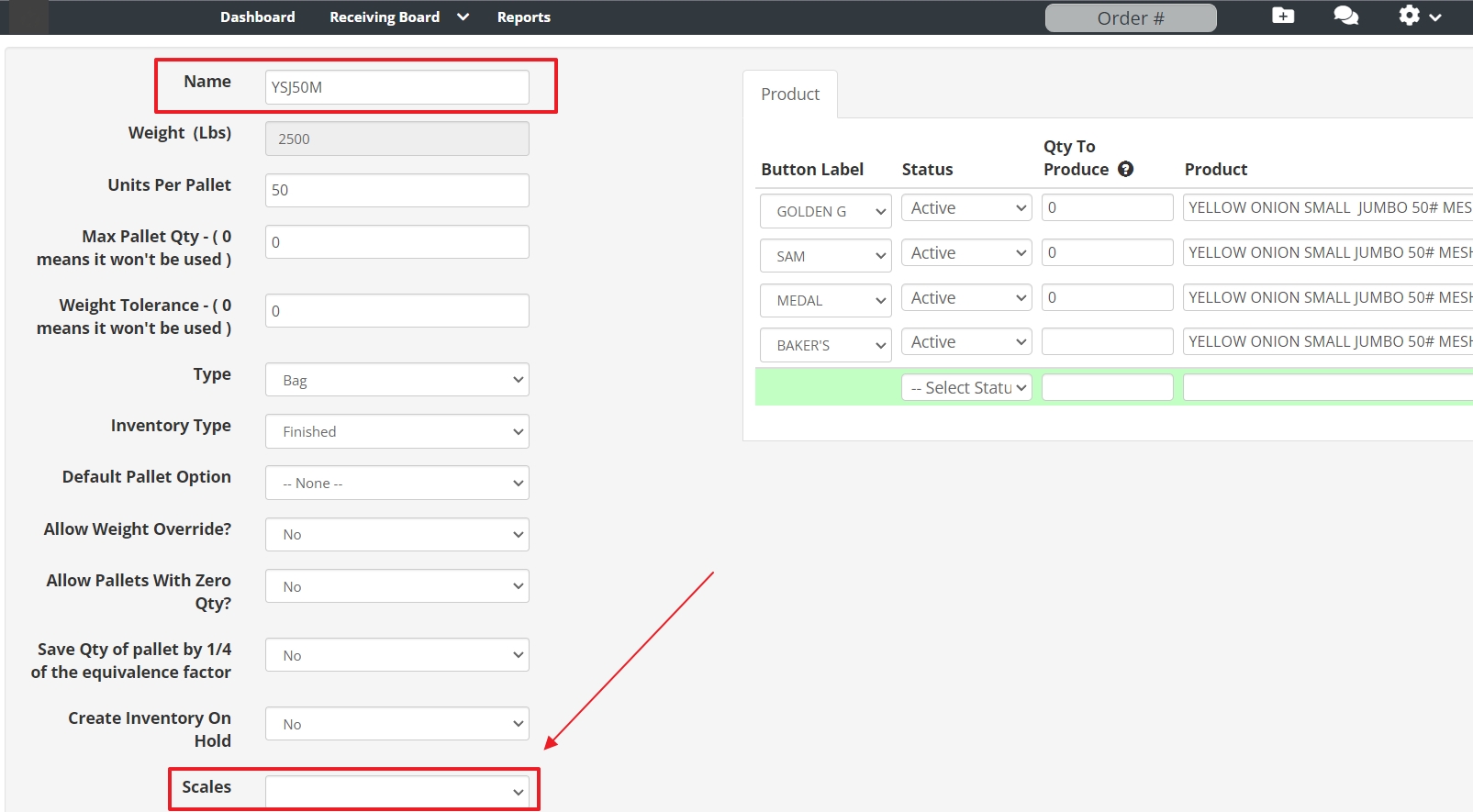
| Using Production Line Scales: Go to Settings > Production Line > Run Profiles |
 |
| Select the Run Profile: Then assign the pallet scale to that profile |
 |
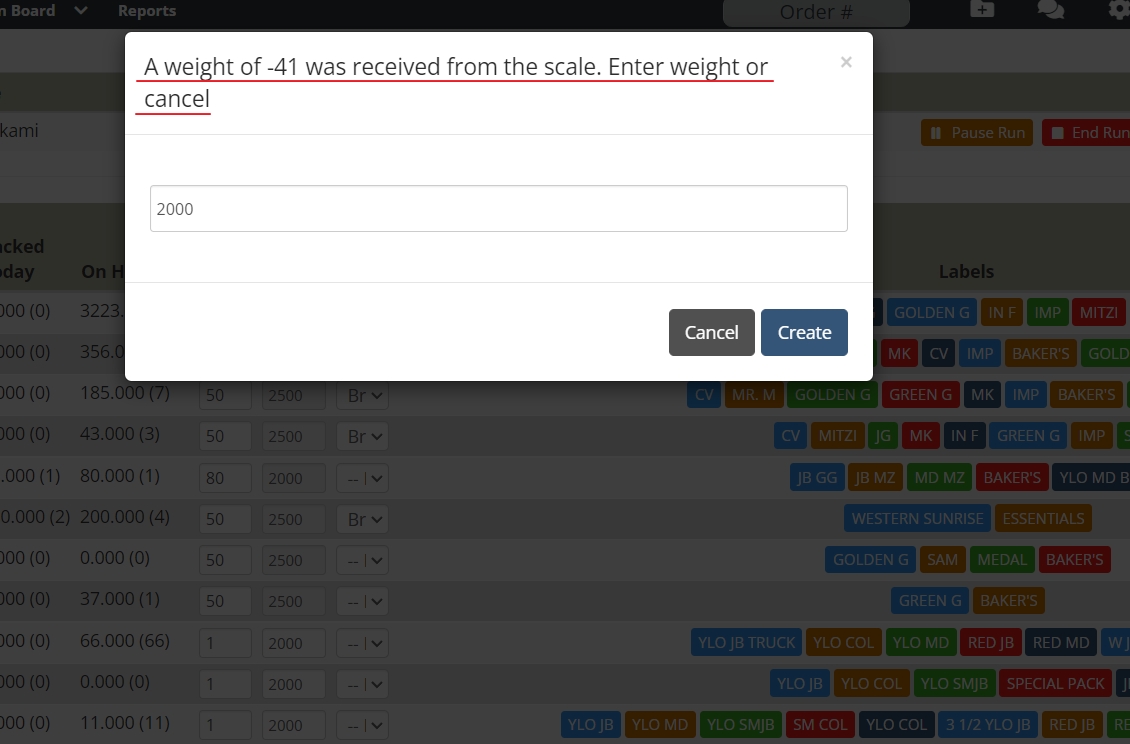
| On The Production Board: When creating inventory it will create inventory with weight from the scale. If the weight on the scale is 0 or negative you will have the option to enter the weight manually |
 |