Frequently Asked Questions
What Printers, Scanners, or Scales Should I buy
Recommendations: Click to expand
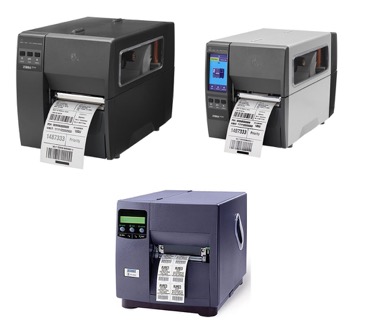
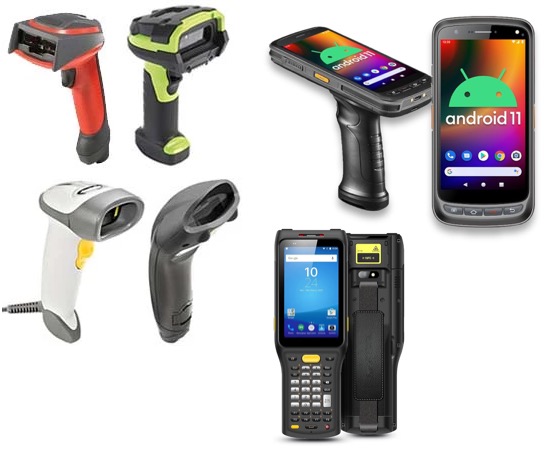
- The Fusionware Team does not sell, service, or install printers, scanners, scales, and other equipment you might use with Fusionware.
- We do have recommendations on equipment based on what we have seen other facilities use.
Printers
- Once you create a print job in Fusionware your print dialogue window shows up and you can select any printer to print to that is connected to your computer.
- We recommend finding a local printer sales and servicing company for your industrial label printers and label supplies.
- If you are looking for a pallet or PTI tag printer you will want something that prints at least 4" wide & supports Windows/Mac printer drivers along with ZPL.
- Datamax, Zebra, and SATO “Industrial Thermal Printers” are popular brands that many of our customers use.
- You can do a Google search for new and used printers if you do not have a printer company you want to use.
- Datamax, Zebra, and SATO “Industrial Thermal Printers” are popular brands that many of our customers use.
Scanners
- Hand scanners - These vary so it will depend on your setup and needs.
- You can do a Google or Amazon search for Barcode Scanners and there are lots of options.
- Android Scanners - There are a large variety of stand alone Android scanners that you can run our mobile application on.
- A minimum of a 5 inch screen and at least Android version 10 is recommended.
- They usually have a Zebra or some other scanning component attached to the device.
- Do a Google or Amazon search for “Android Barcode Scanners 5 inch”.
- Phones An alternative to buying a scanner is to use any iPhone or Android phone and scan with the camera while in the mobile app.
Scales
Fusionware can integrate with your truck or pallet scale. Please contact sales for pricing information.
-
Qualifications:
- Your scale must have the ability to do a constant output and have a serial port.
-
How it works:
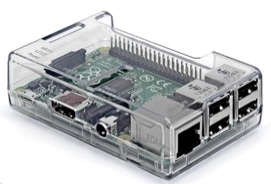
- We connect a small computer, a Raspberry Pi, to your scale through the serial port.
- The Raspberry Pi needs access to power and the internet.
- Once connected to the scale and the internet, the Raspberry Pi communicates weights to Fusionware.
How do I set up a Lot
Answer: Click to expand
- Go to settings
- In the Farm column select Fields
- Select the physical field you want the lot to be tied to.
- At the bottom of the details in the green section put your lot in.
How do I set up my Storages
Answer: Click to expand
- Go to settings
- In the Farm column select Storages
- Select the “Add New Storage” button in the upper left.
- Add your details and select the create button.
How do I empty out my storages
Answer: Click to expand
Option 1
- Go to the receiving board in the boards dropdown.
- In the upper right select the “Add Receiving” button shaped like a file folder with a plus sign.
- Select storage as what you are receiving from and the load type.
- In the add receiving details, select the lot from the storage you want to move to a new destination.
- Add any other information then select create.
Option 2
- Go into settings, companies column, and then locations.
- Select the shed you will be packing product from.
- Go to the sources tab in the shed/location details.
- Add the storage as a source and make sure the “Type” is set as “Storage.”
How do I set up a comment that I want to reoccur on orders
Answer: Click to expand
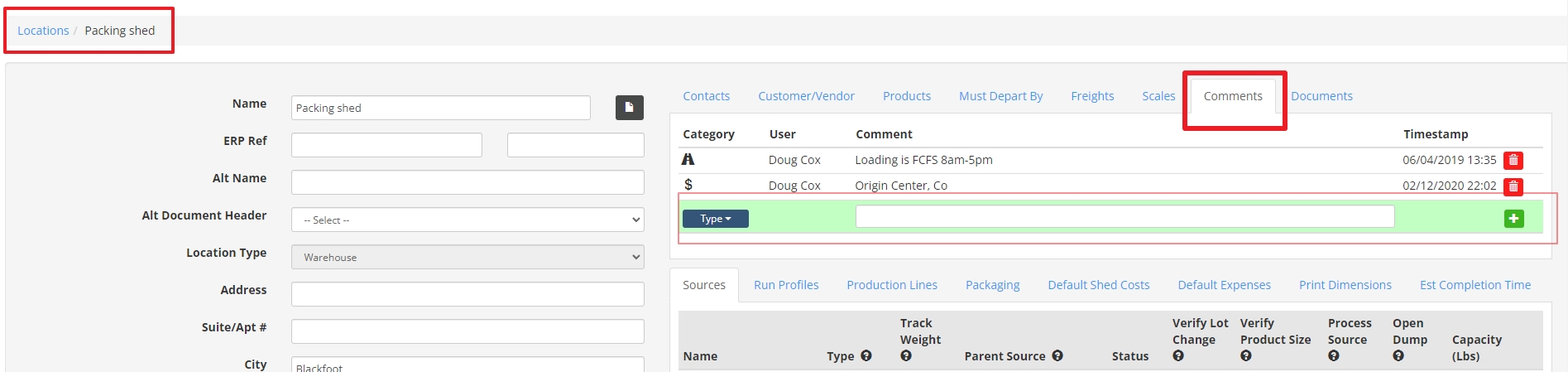
- Go into settings, companies column, and then locations.
- Select the shed location you are creating orders for where you want the comments to show up at.
- On the right side of the screen in the “comments” tab add a new comment in the green section.
- When this location is selected as the origin on orders, the comments added will show up on every order in the order comments section automatically.
How do I duplicate orders
Answer: Click to expand
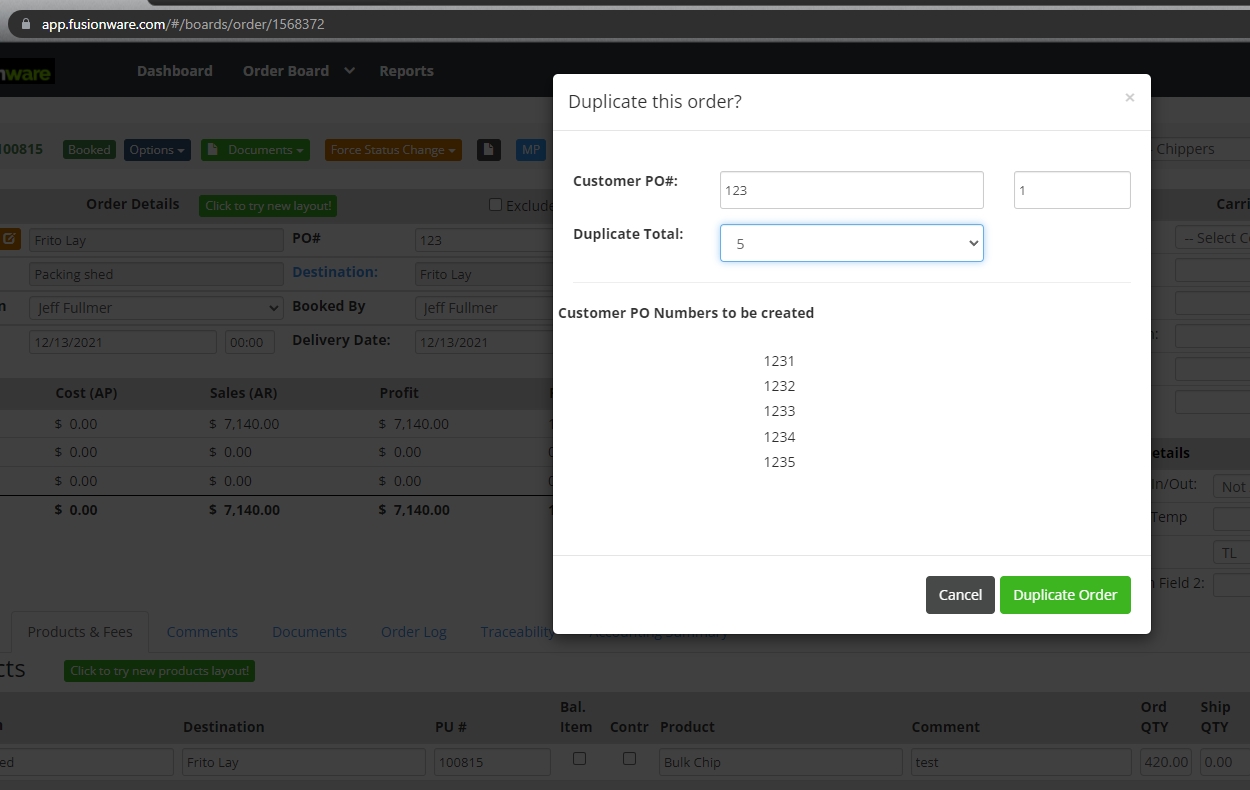
- In an order you 1st need to create a PO # for that order.
- Inside the order details select the blue options button near the top of the order and then the duplicate order option.
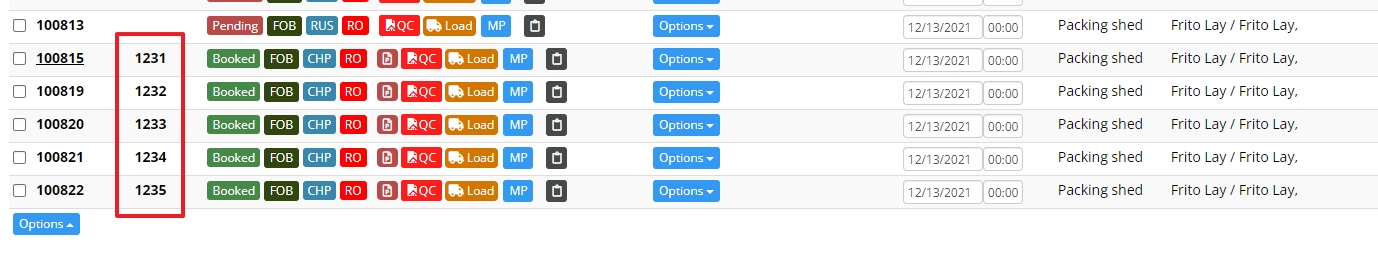
- Select how many total orders you want to create and then the new PO#’s for the duplicates (and the original) will display with the option to modify the PO# and the sequential number.
- The “duplicate total” number is how many total orders you want with the information you created with the original order.
- The duplicate orders will all have different order numbers and the PO#’s will be sequential
- You are able to select the blue options button on the order board and the duplicate order option is available there as well.