Accounting Software
QuickBooks Desktop
To add the QuickBooks Desktop Integration to your Fusionware account please contact a Fusionware representative.
Click to expand
| Step | Image - Select Image To Expand |
|---|---|
| 1 of 12 Must be logged in as a Fusionware Company Admin and QuickBooks Admin to proceed! - Settings > Company Profile > Integrations | 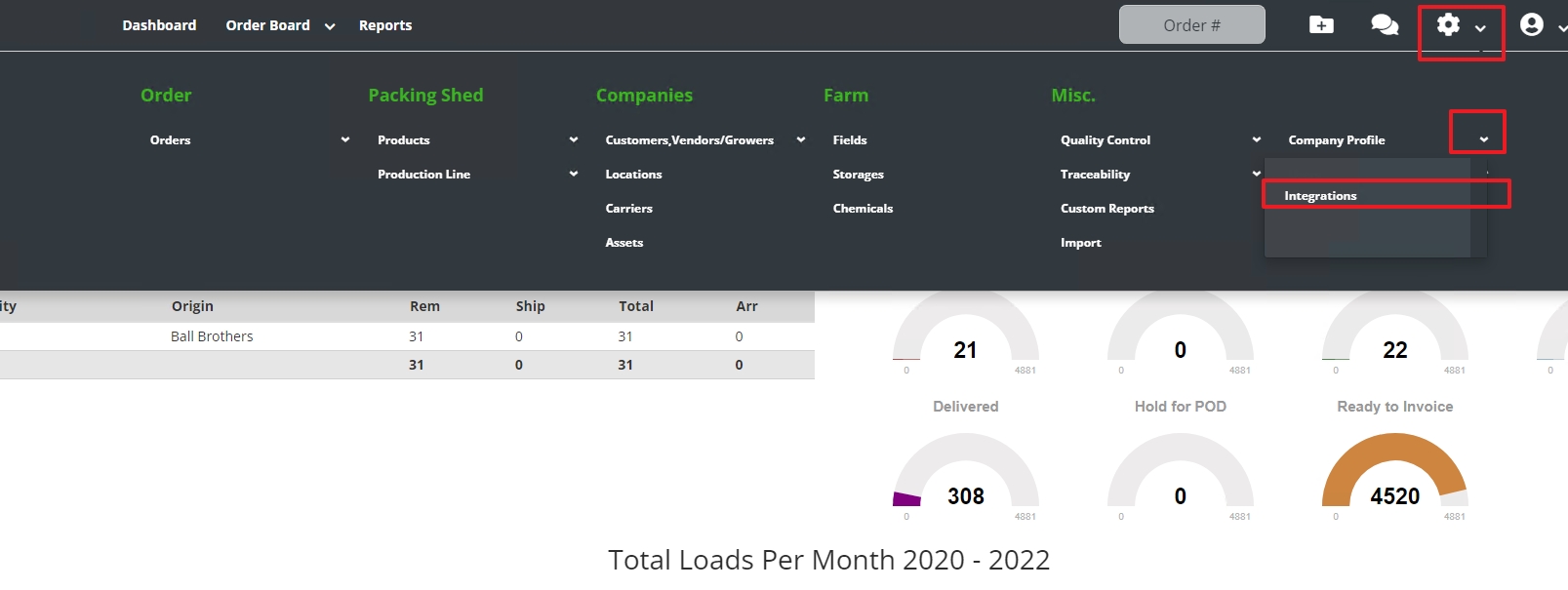 |
| 2 of 12 Select Setup | 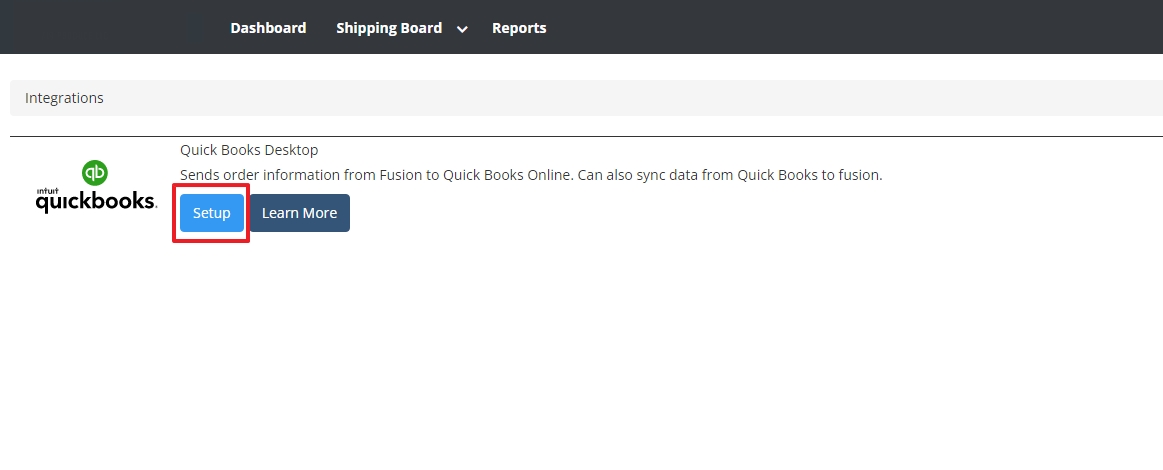 |
| 3 of 12 Input QuickBooks Account Names and Info. Select “Submit and Download” to Proceed | 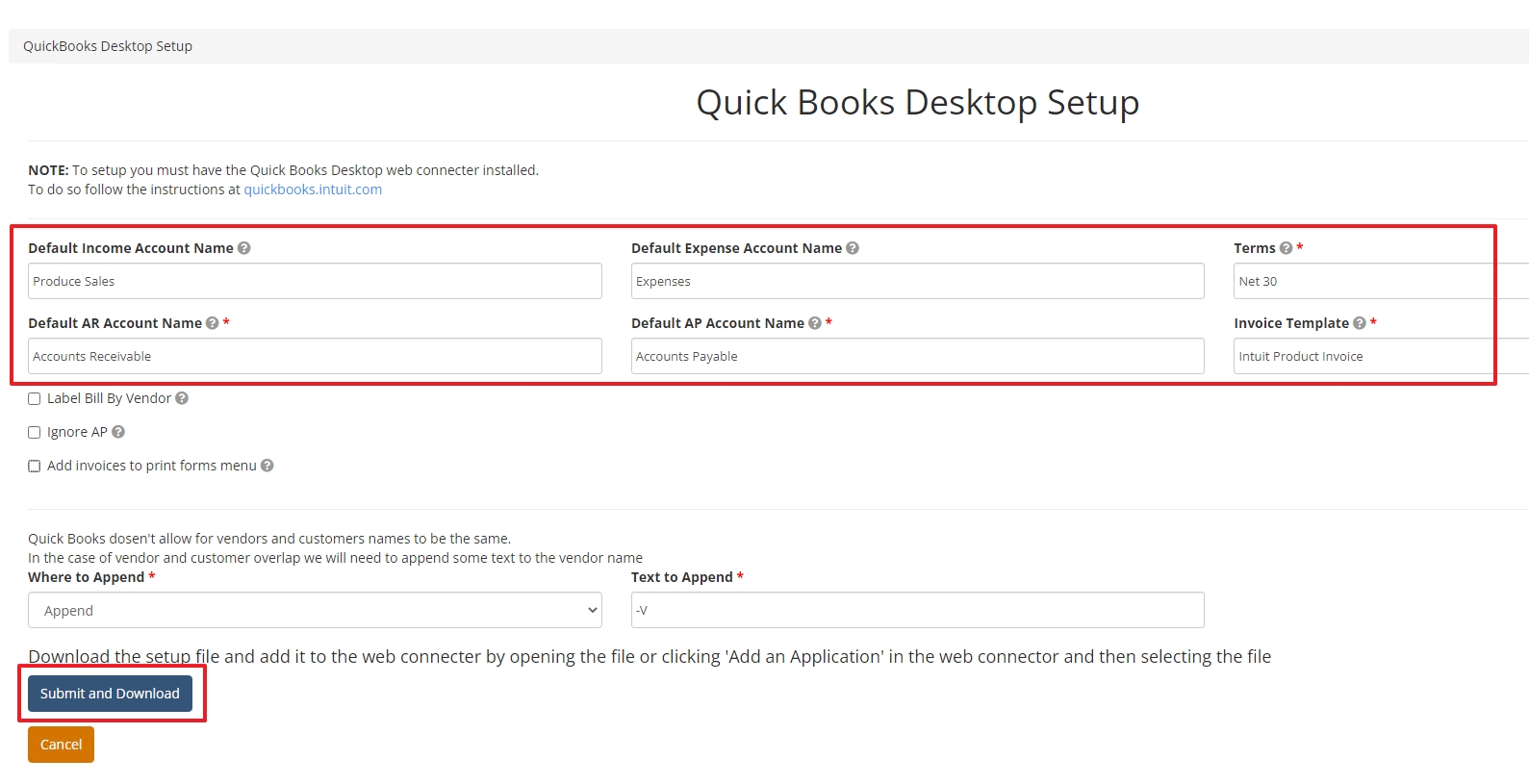 |
| 4 of 12 Verify the File Has Downloaded, It Will Be a QWC File | 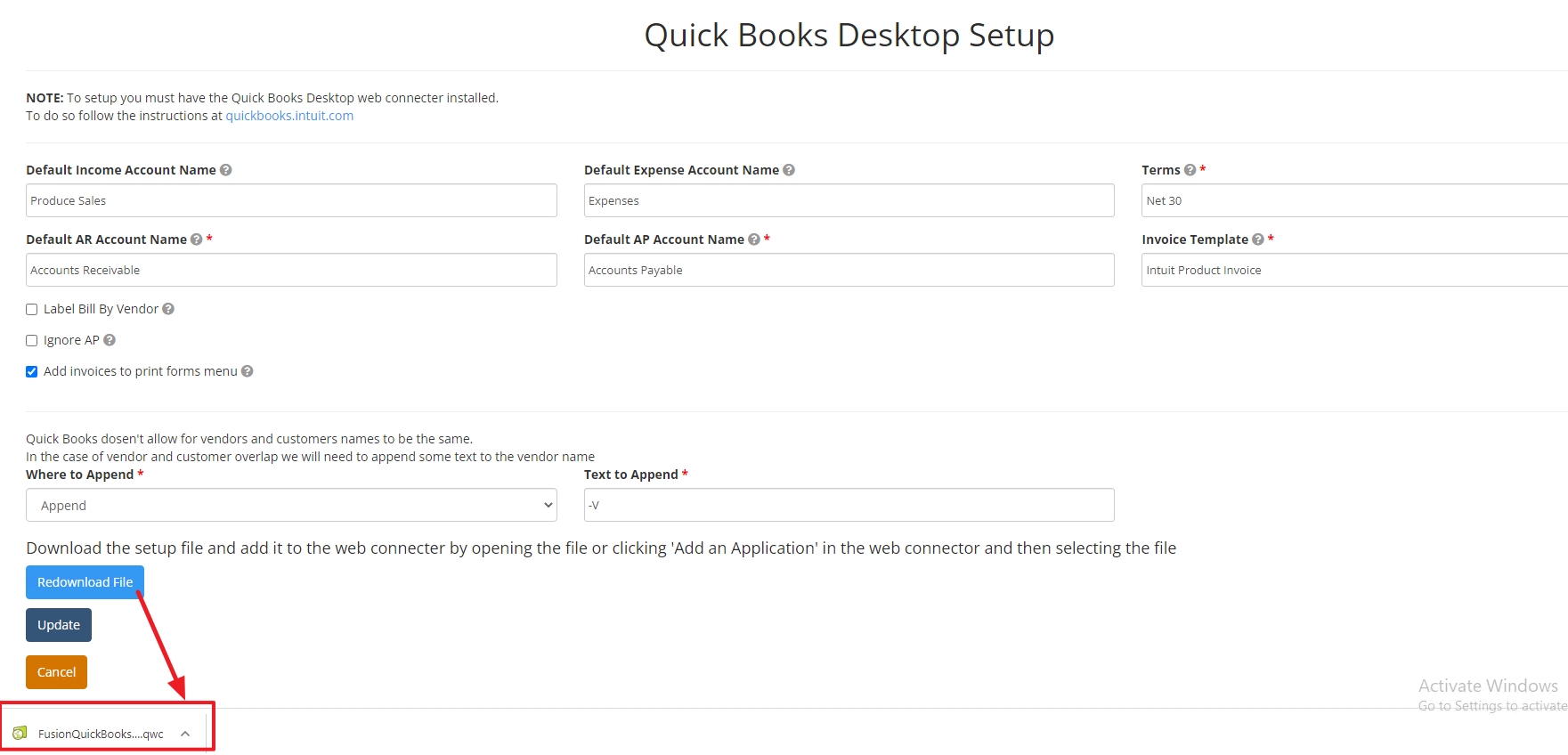 |
| 5 of 12 Download QuickBooks Desktop Web Connector from their Website. You can open the QWC file you downloaded or open the Web Connector and select “Add An Application” | 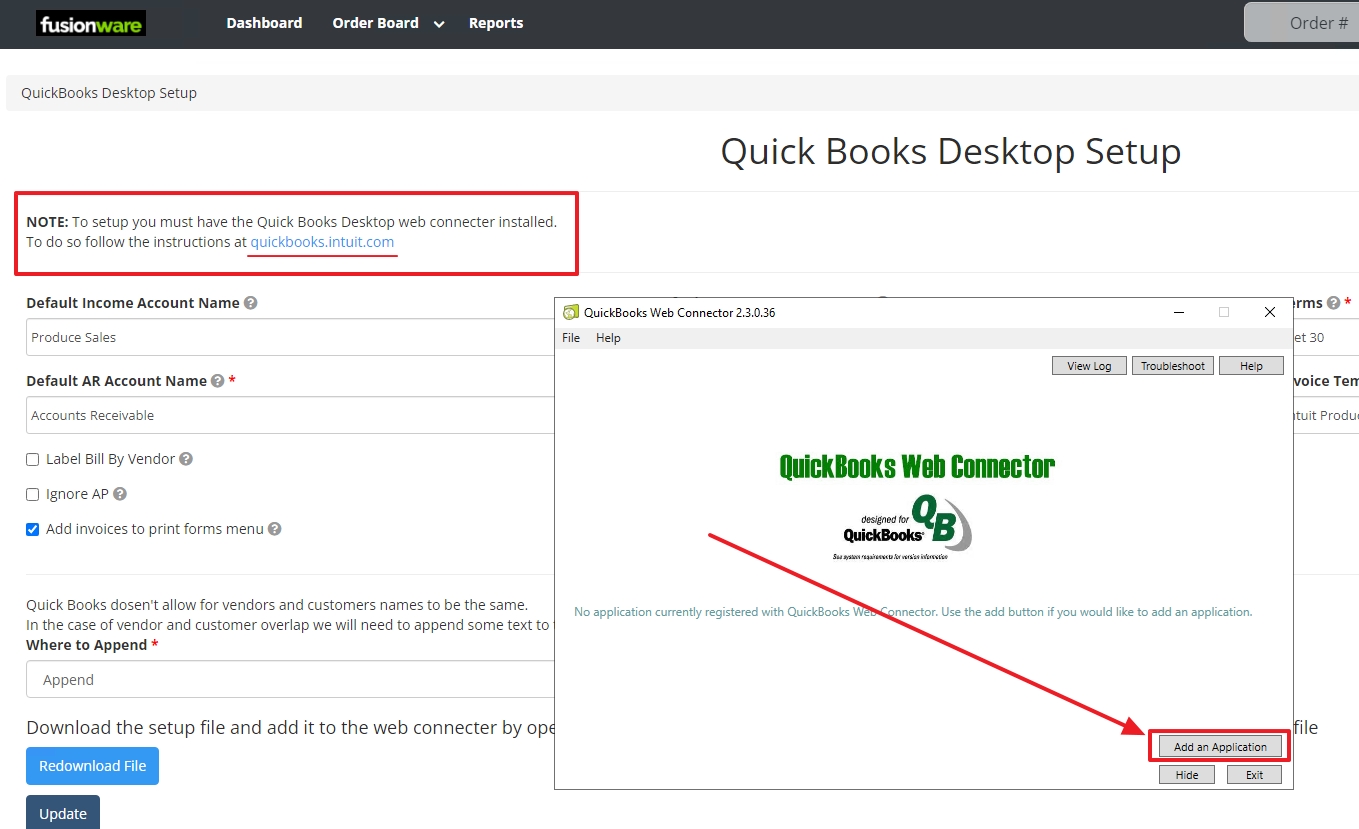 |
| ADMIN LOGIN WARNING - If you are not logged in as the main QB “Admin” the next step will cause an error in QB | 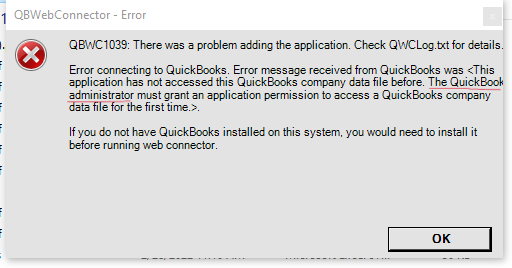 |
| 6 of 12 Select the QWC file from where you downloaded it to your computer and press “Open” | 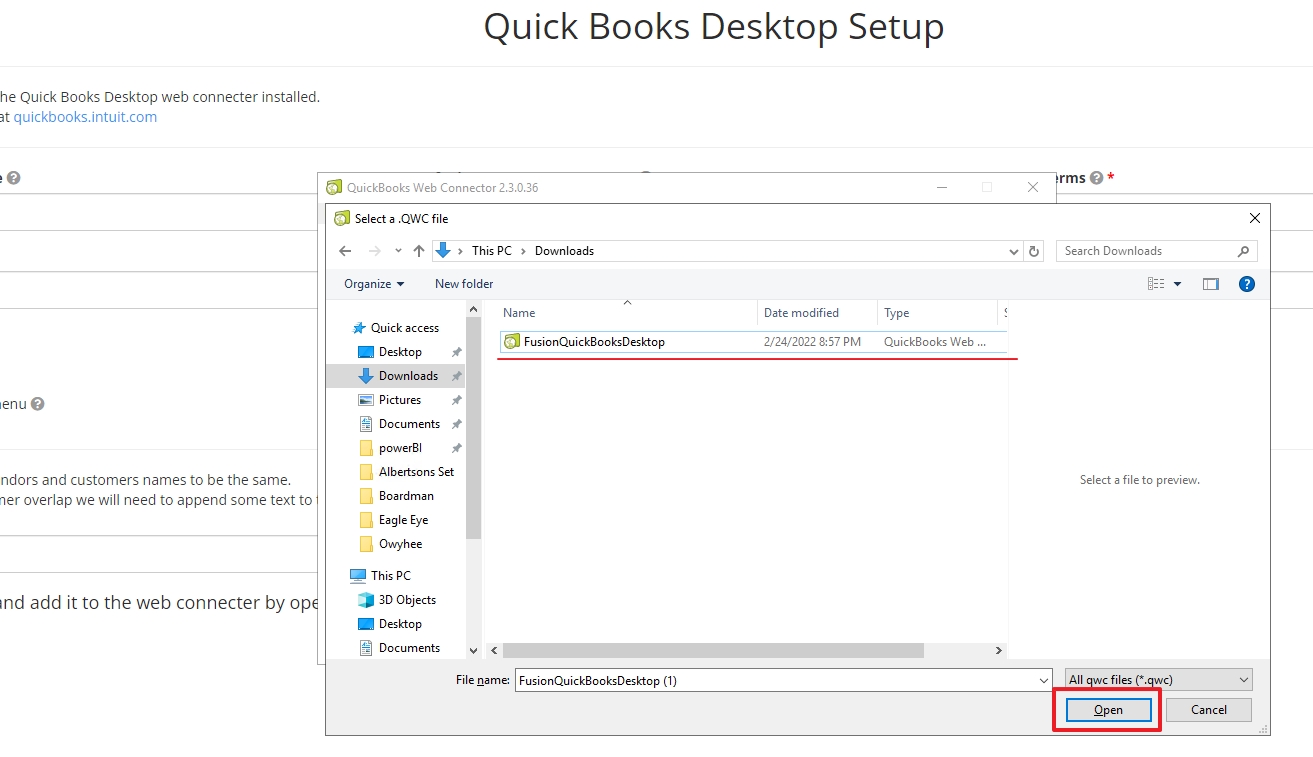 |
| 7 of 12 Make Sure QuickBooks is Running in the Admin login and Select Ok to Authorize New Web Service | 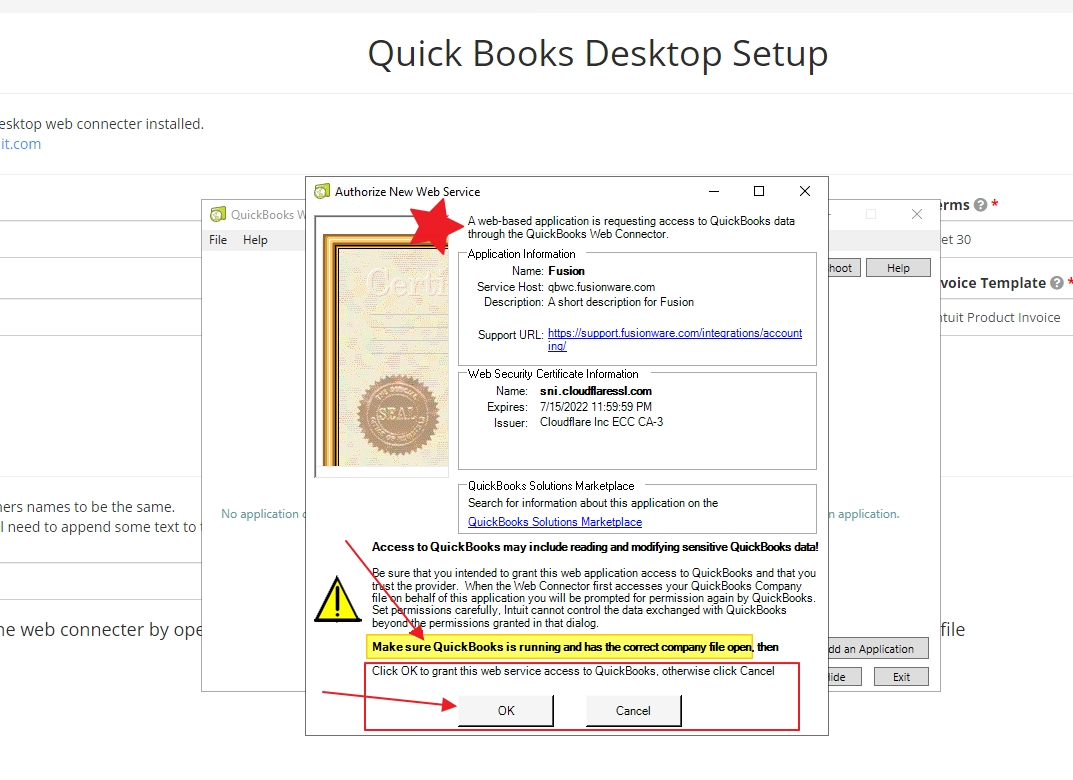 |
| 8 of 12 Go to Quickbooks and select the “Yes, always: allow access…” button. On the next line, if you are in multi-user mode select a user with admin access from the dropdown. Select continue and return to the Web Connector | 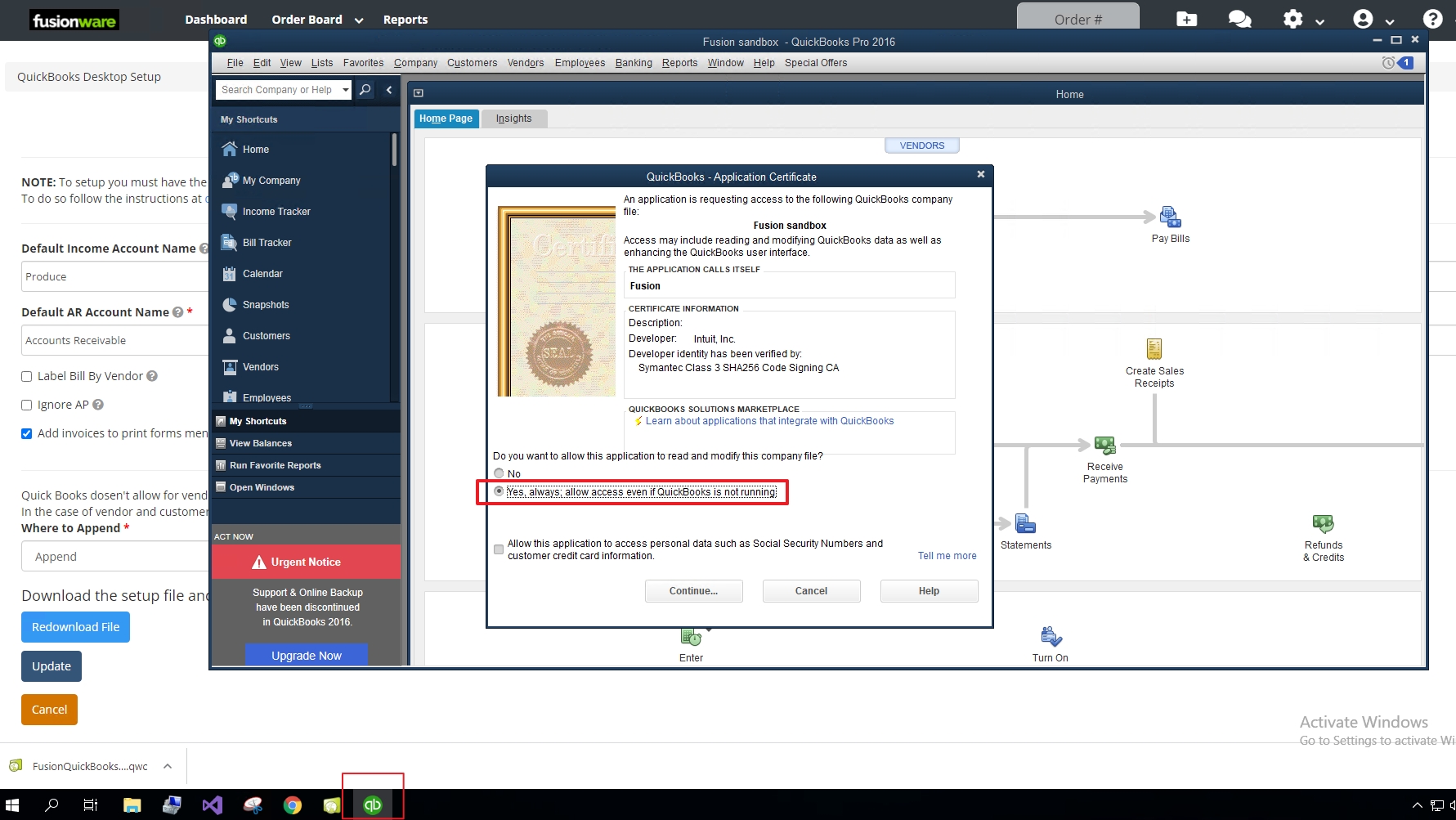 |
| 9 of 12 The Fusionware User Name/Email and Password you are logged into should auto populate in the Web Connector. If you need to update the password you do it here | 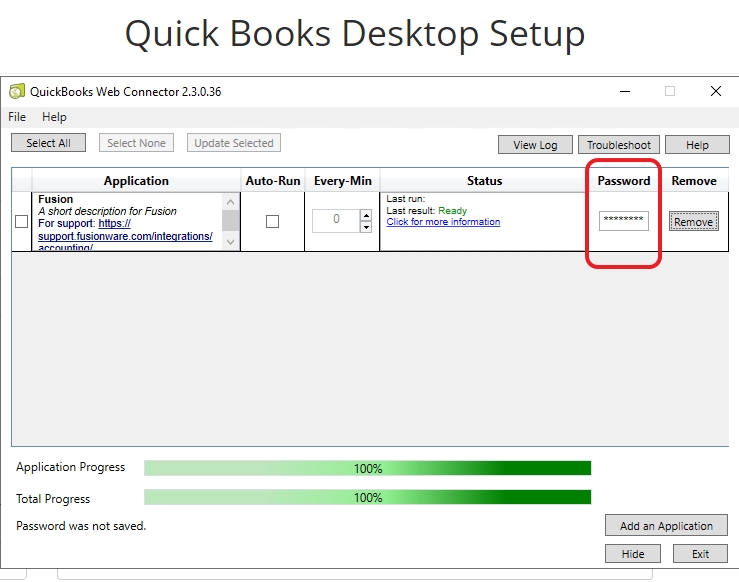 |
| 10 of 12 Setup/Modify how often you want the Web Connector to Auto-Run | 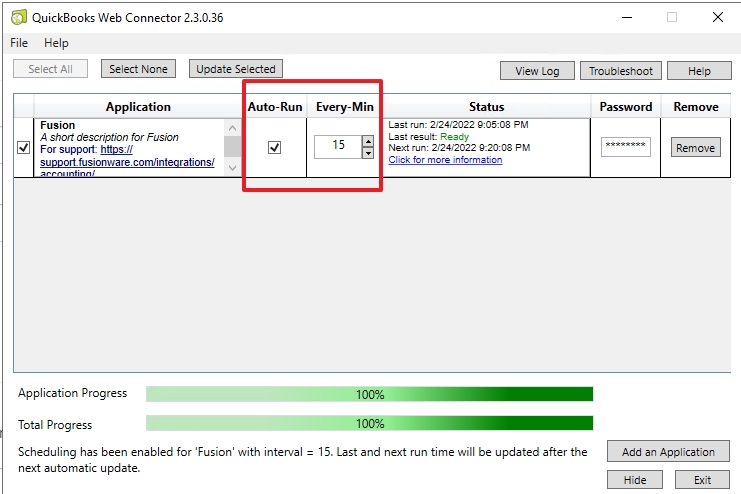 |
| 11 of 12 To test the connection select Update Selected (make sure the box is checked on the far left) | 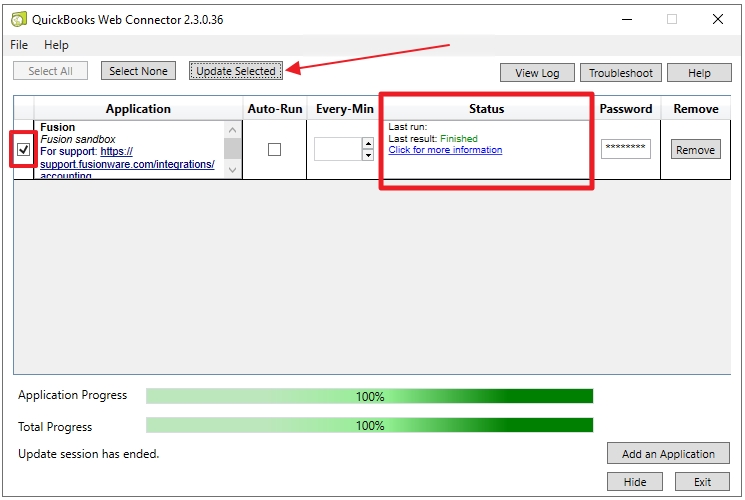 |
| 12 of 12 You can hide or minimize the Web Connector and it will run in the background, this needs to be running at all times to send Orders into the Adapter Queue | 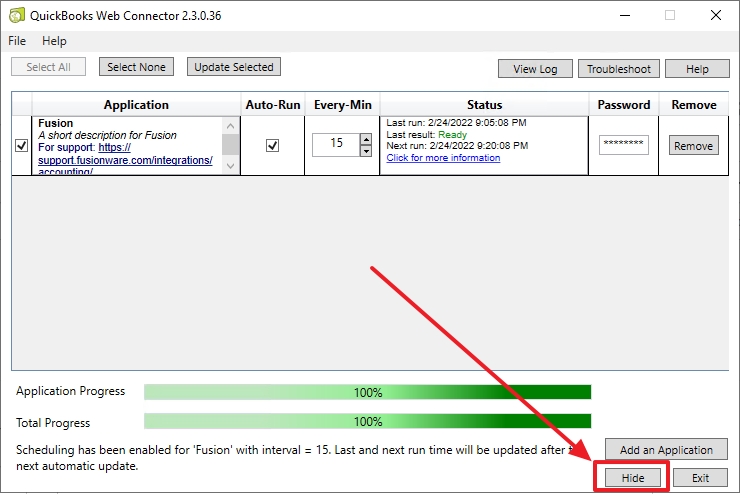 |
| Error/Status | Image - Select Image To Expand |
|---|---|
| 1 of 4 Error result | 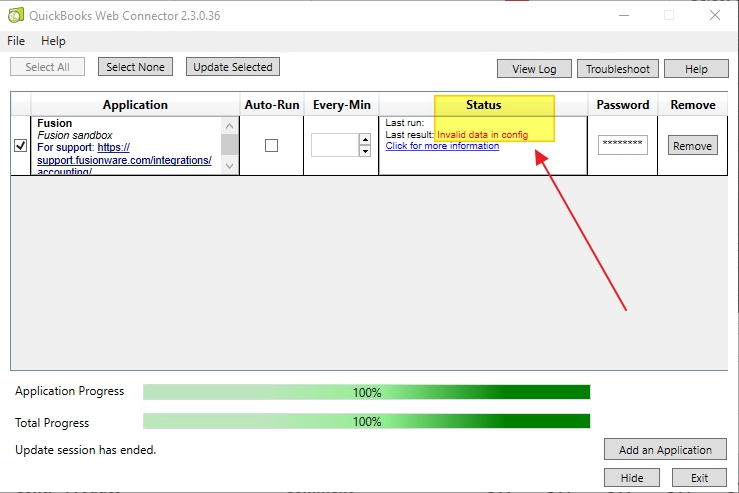 |
| 2 of 4 To determine the error, go to - Reports > Adapter Summary | 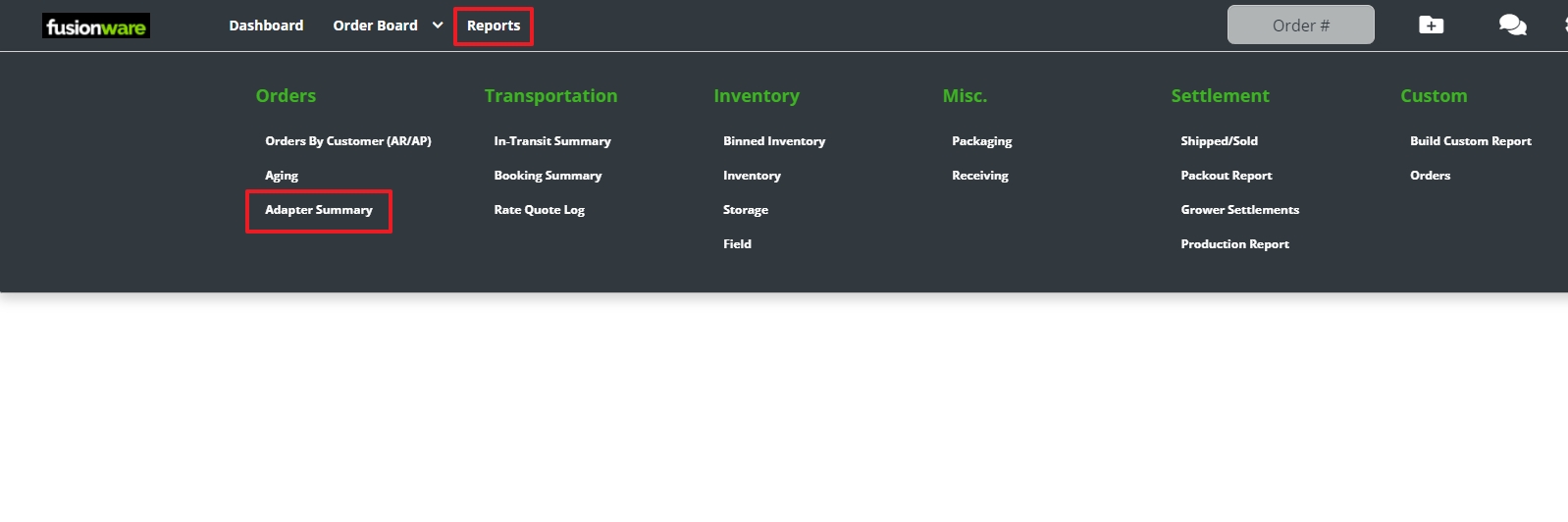 |
| In the Adapter Summary is the Adapter Queue with current and past Orders that have been sent to QuickBooks. Check the Status Column to find ones with errors | 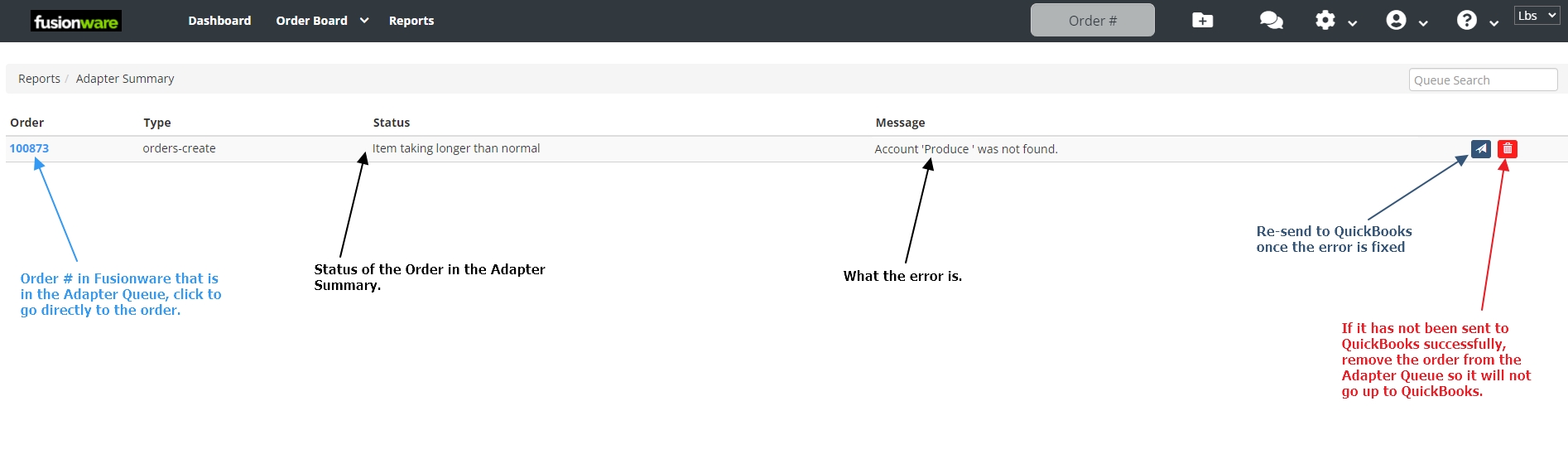 |
| 3 of 4 The account name does not match between Fusionware and QuickBooks. Correct the name and save. Select the Re-Send button in the Adapter Summary and then Re-run the Web Connector | 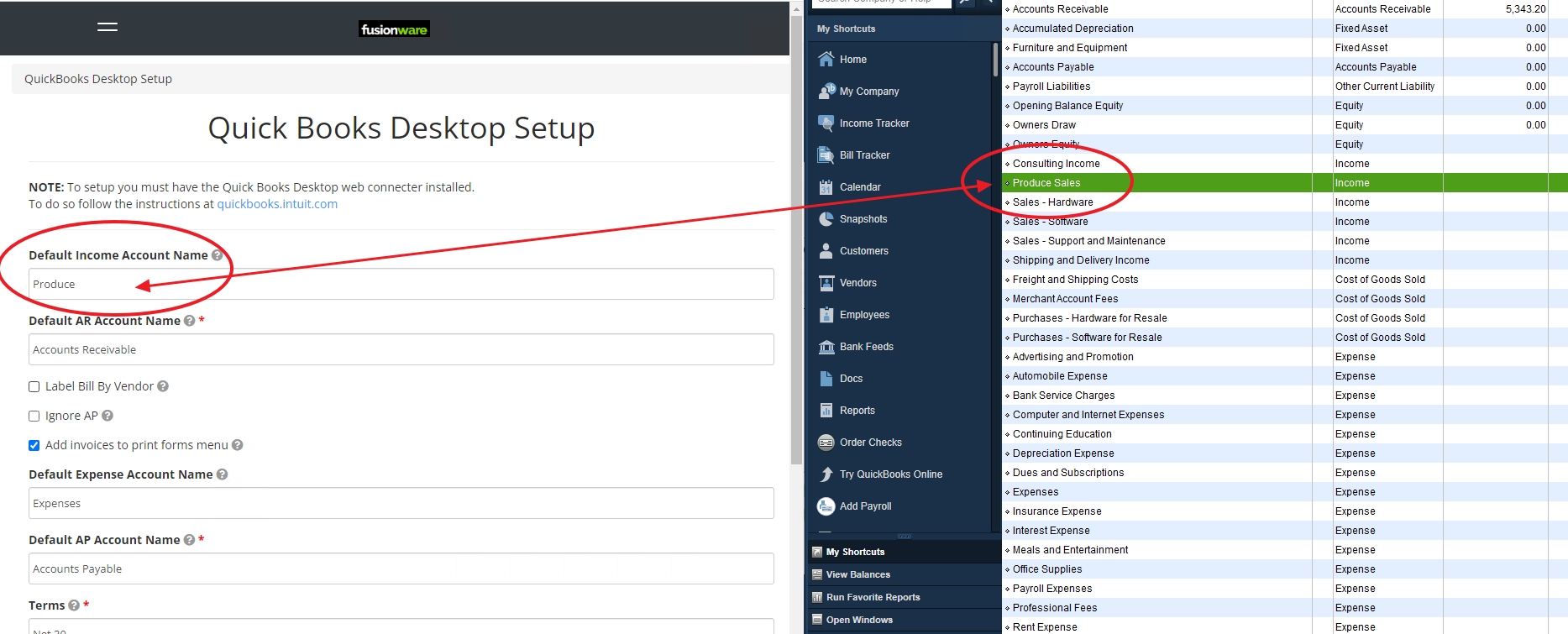 |
| Example Error: You must have a correct Fusionware admin user login & password entered into the Web Connector | 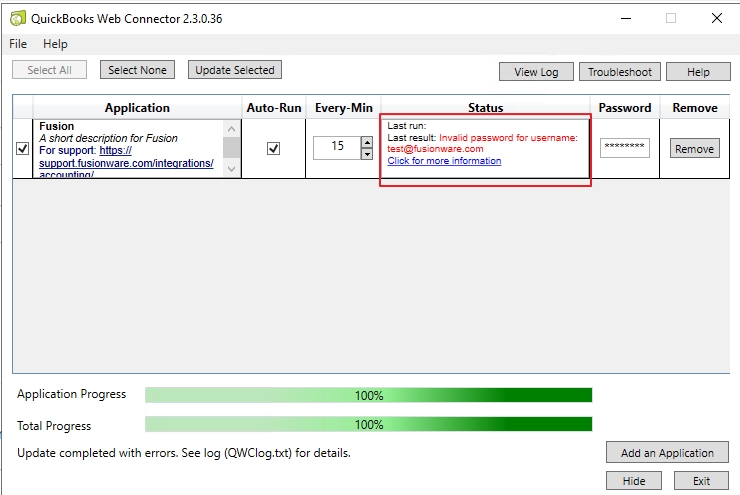 |
| Example Status: If the status “No data exchange required” appears that means there is nothing in the Adapter Queue to send to QuickBooks. An Order must be in “Invoice” status to go into the Adapter Queue | 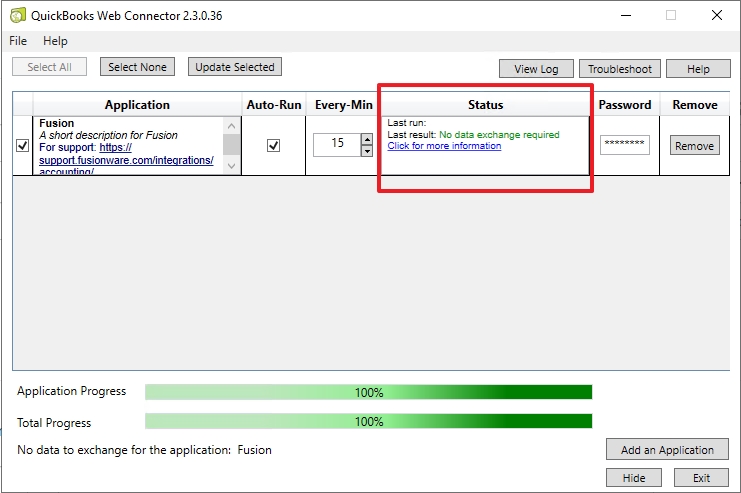 |