Printers
To get started using a Fusionware print server please contact Fusionware Customer Support. Additional equipment, a Raspberry Pi in most cases, will be required to be connected onsite to your network and PTI label printer.
PTI Print And Apply Basics
Click to expand
| Print & Apply Basics |
Click The Image To Expand |
| Production Board |
Go to the Production Board and select the production line you want to use the print and apply printer on. |
| Product & Case Label |
Select the Product you wish to put on the label and then select the appropriate Case Label. 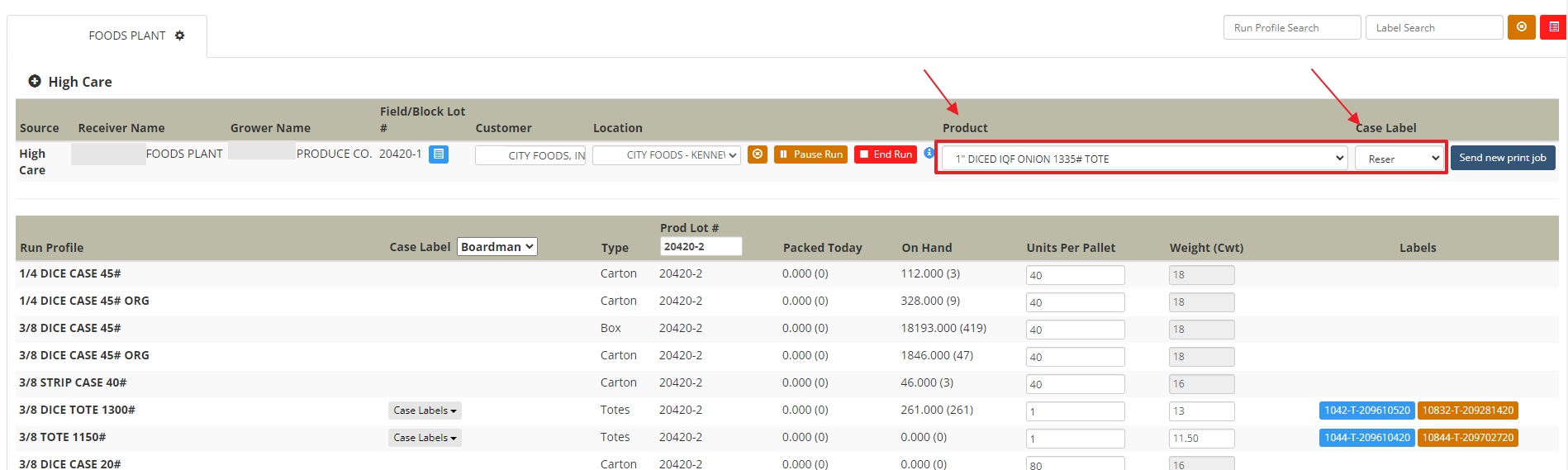 |
| Send Print Job |
Select the “Send new print job” button and then press the “Yes” green button. The print job is sent to the label printer and will print and apply this label until it is changed. 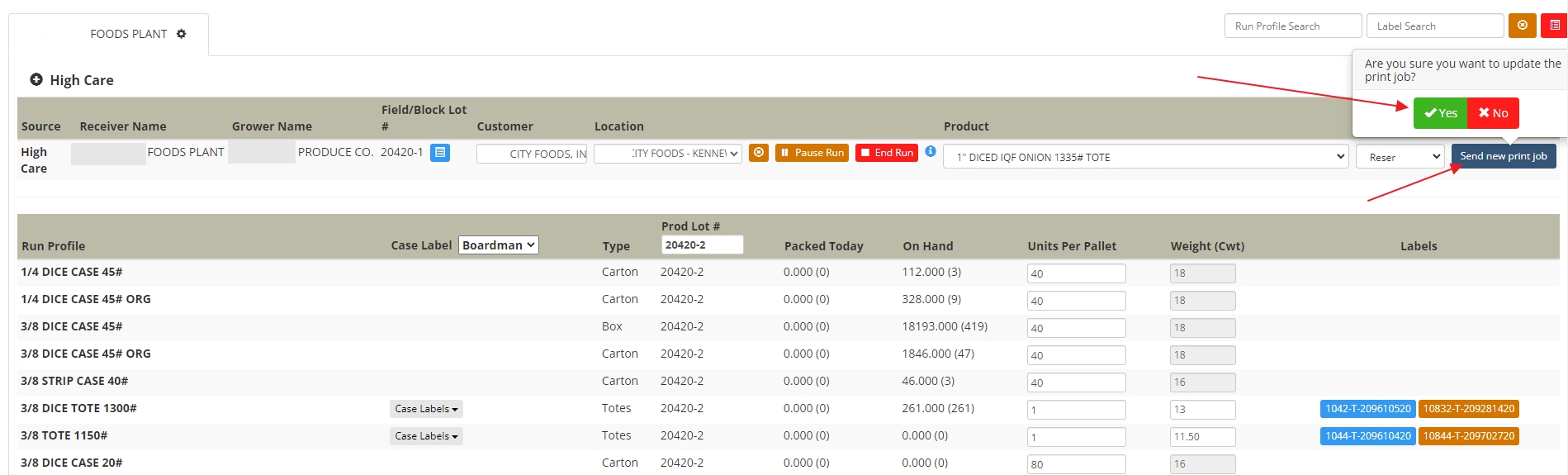 |
Fusionware Print Server Setup & Maintenance
Click to expand
| Fusionware Print Server |
Click The Image To Expand |
| Adding Printers |
Go to Settings > Locations > Shed Location and then the Printers tab. Then put in the name, host address of the printer you want the print jobs to go to. Put in the port number and if it is a print and apply printer select “Yes” from the dropdown if this is for a print and apply printer. 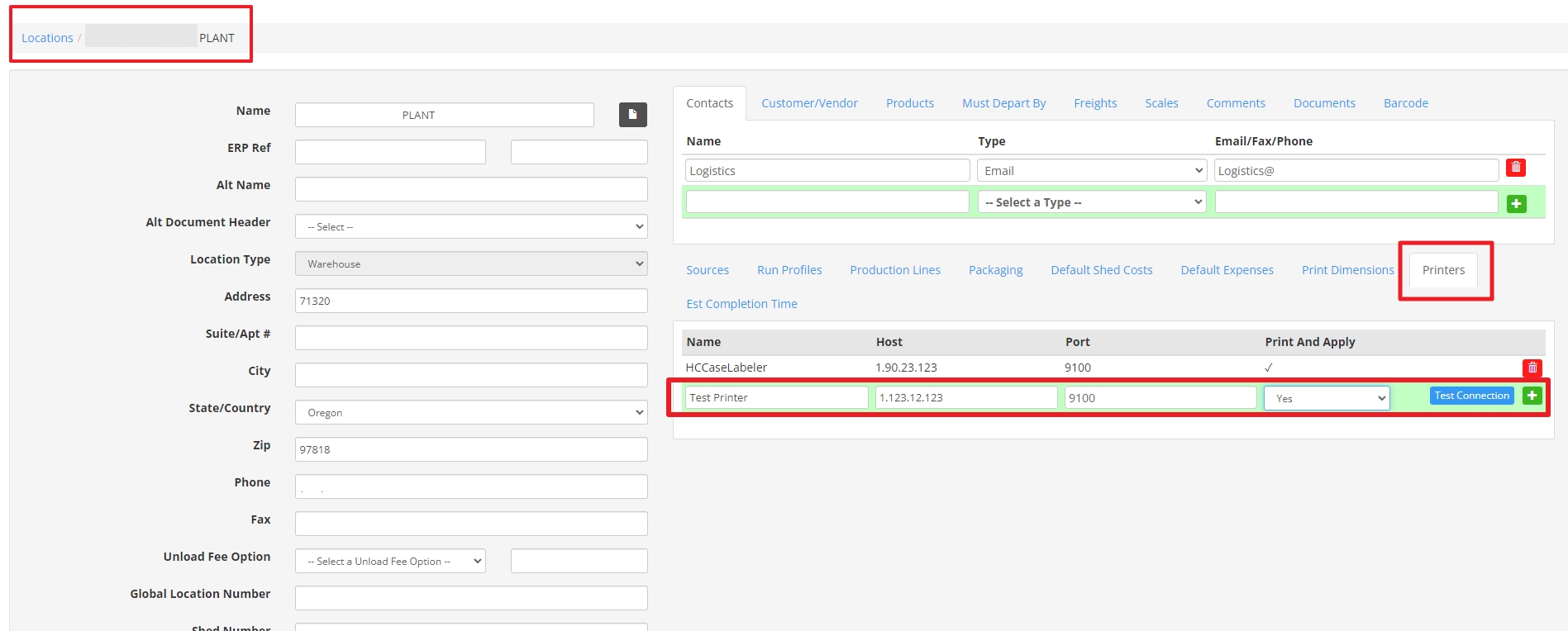 |
| Test Connection |
Select the blue “Test Connection” button to determine if the printer is setup correctly. If the connection fails a red dot will appear and if the connection is successful it will be a green dot. 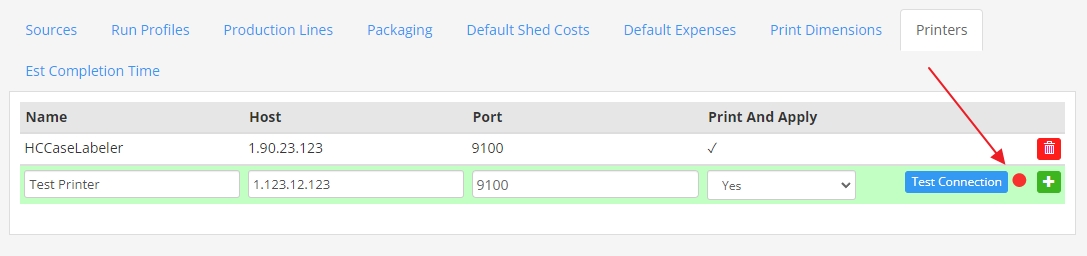 |
| Printer List |
Once you have selected the green + sign the new printer will be added to your printer list. 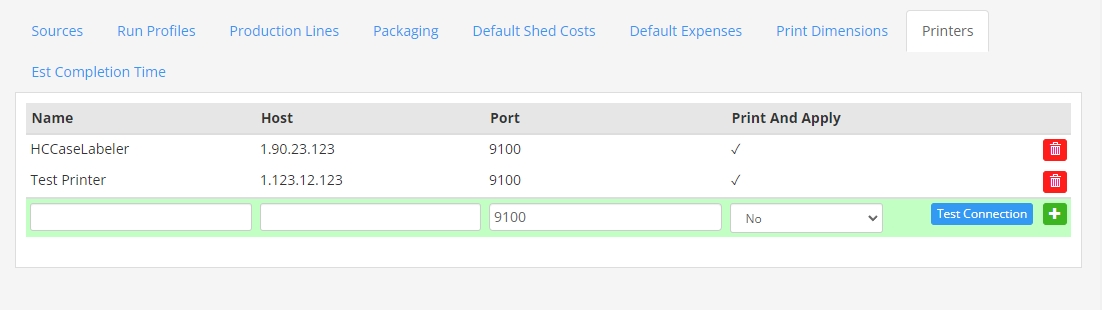 |
| Production Lines |
Select the Production Lines tab and go to the PTI Printer column and the production line you want to add the PTI Printer to. Select the appropriate printer name from the dropdown 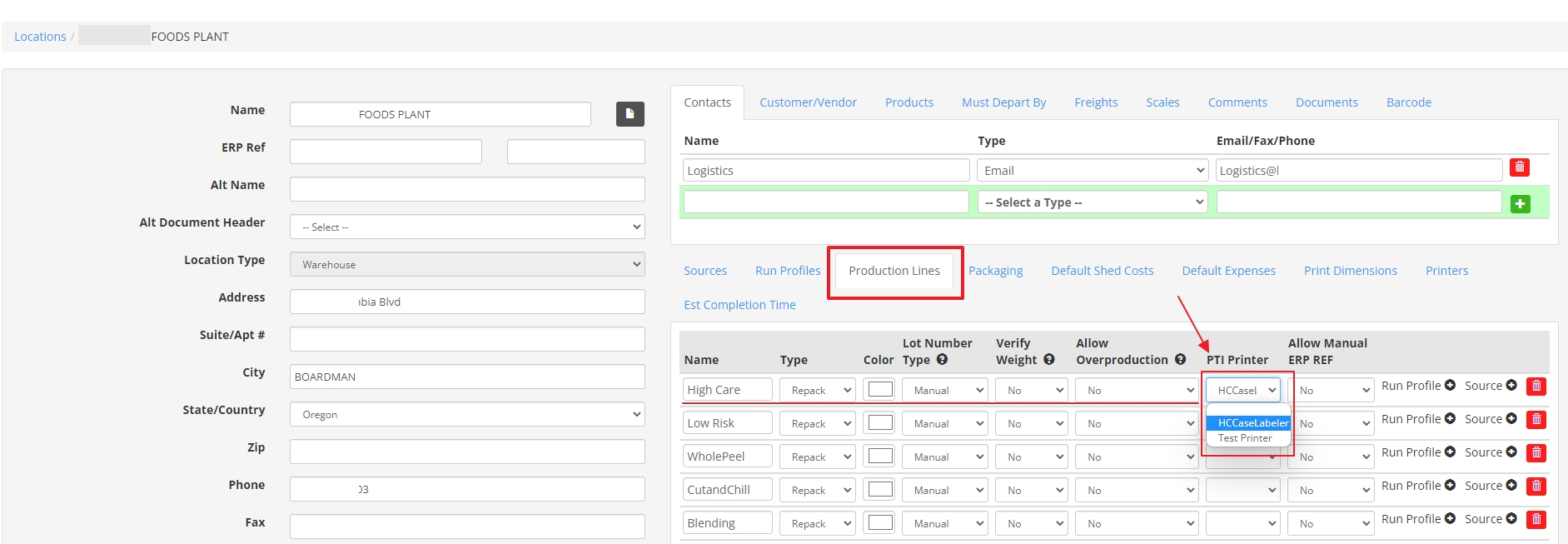 |
| Trouble Shooting |
If there is a print failure, please check that the Raspberry Pi is connected to your network via the ethernet port. Also verify that there is power to the Raspberry Pi unit. There should be an indicator light that is active. If the unit loses power it will automatically restart once power is restored. Finally, the ZPL printer must be viewable on your network for the Raspberry Pi to talk to it. 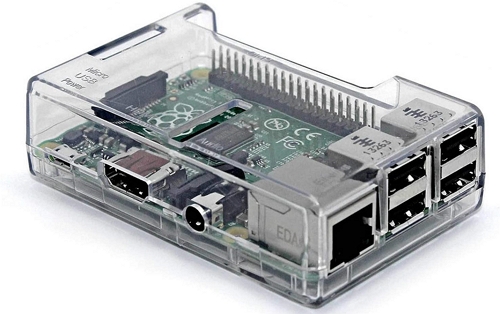 |
| Print Job Workflow |
User sends a print job to the PTI printer through the Production Board in Fusionware. The message goes to the Raspberry Pi that then sends the print job to the printer. The print job is then stored local on the printer until the job is overwritten. 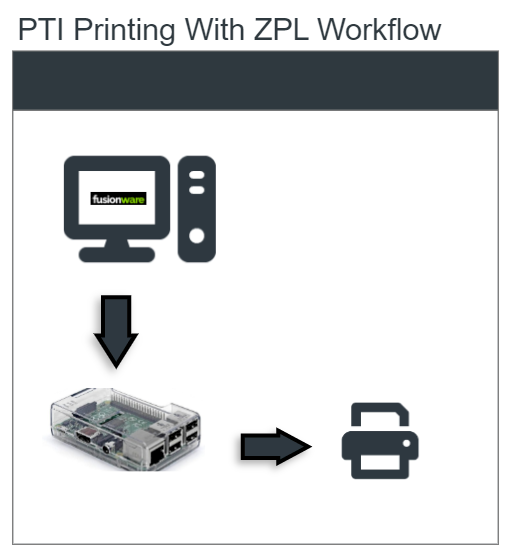 |