Privileges
Settings » Misc. » Users » Privileges
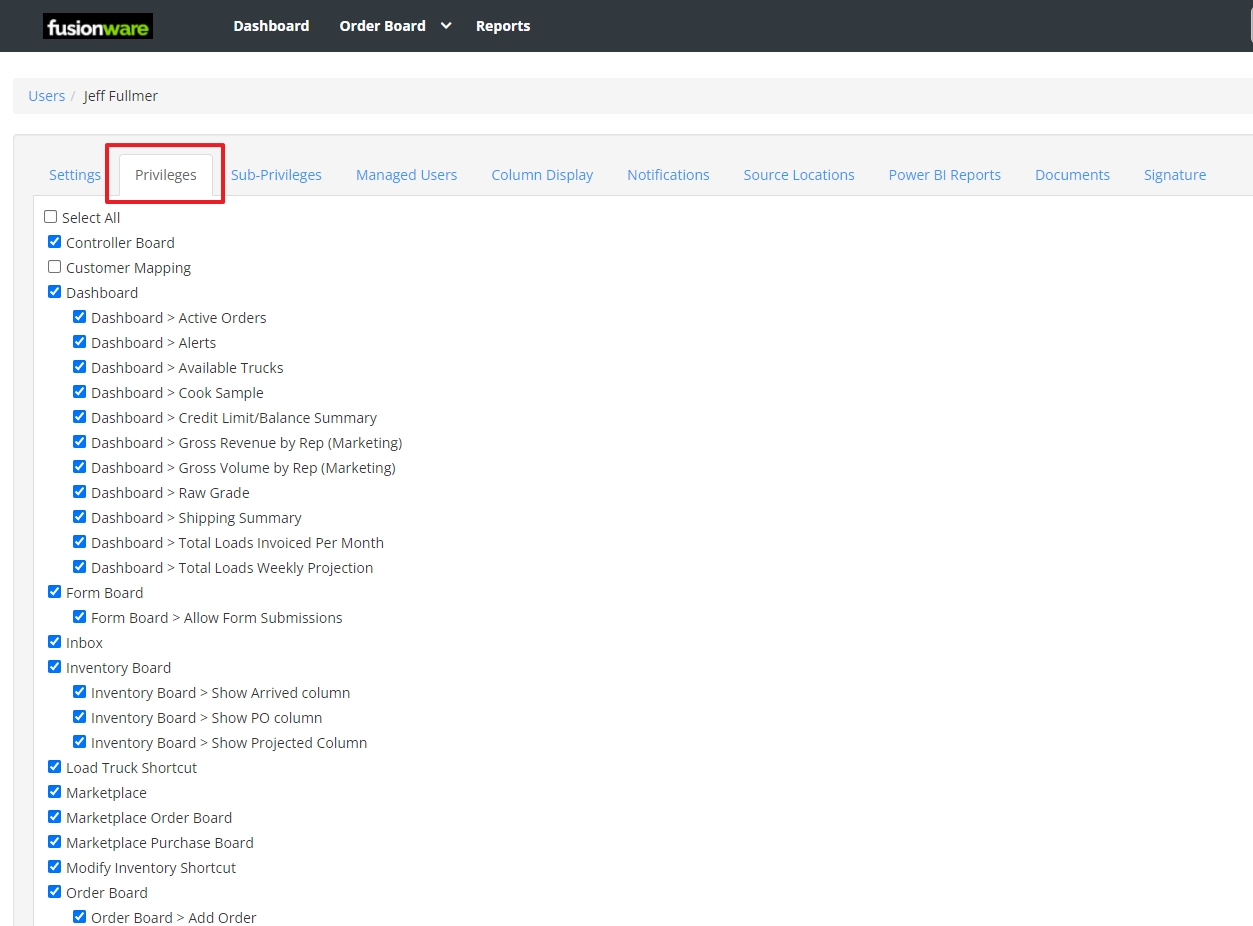
The Privileges tab controls exactly which pages, boards, buttons, and columns a given user can see in Fusionware. Each row below is one checkbox on that screen, listed alphabetically by section the way they appear on the page, with a plain-language explanation of what turning it on actually does.
Bold rows are section headers — some are a single standalone checkbox (e.g. Controller Board), others are a parent checkbox with numbered sub-privileges nested underneath it (e.g. Dashboard).
As of August 2026, the mobile app no longer has its own separate “Mobile” permission group — that group has been removed from this screen. The mobile app now checks these same privileges to decide what to show and enable, matching the web app.
| Field Name | Description |
|---|---|
| Select All | Use to select or deselect all the checkboxes |
| Advanced Production Board | Gives access to the Advanced Production Board, the full multi-line, multi-location console for tracking and editing active production runs in a pack shed |
| 1. Advanced Production Board - End Run | Adds an “End Run” button so the user can manually close out an active production run |
| 2. Advanced Production Board - Manual Field Control | Adds manual edit controls for a source’s field/lot details instead of relying on automated values |
| 3. Advanced Production Board - Multiple Pallets | Shows a pallet-count field so more than one pallet can be tracked per production entry |
| 4. Advanced Production Board - Revert Automated Lot Number | Adds a “Revert Auto Lot #” button to undo the last automatically assigned lot number |
| Controller Board | Gives access to the Controller Board, used to build grower settlement reports covering receiving, packout, expenses, and payment summaries |
| Dashboard | The main landing page when you login to Fusionware |
| 1. Dashboard - Active Orders | Shows the “Active Orders” summary panel on the Dashboard, tracking how many orders are currently open |
| 2. Dashboard - Alerts | Shows the Alerts panel on the Dashboard, flagging items that need attention |
| 3. Dashboard - Available Trucks | Shows the “Available Trucks” panel on the Dashboard, summarizing truck and carrier availability |
| 4. Dashboard - Cook Sample | Shows the “Cook Sample by Day” chart on the Dashboard |
| 5. Dashboard - Power BI | Shows an embedded Power BI report tab on the Dashboard so the user can view that live report |
| 6. Dashboard - Raw Grade | Shows the “Raw Grade by Day” chart on the Dashboard |
| 7. Dashboard - Shipping Summary | Shows the “Shipping Summary” table on the Dashboard, totaling shipments by commodity and origin |
| 8. Dashboard - Total Loads Invoiced Per Month | Shows the “Total Loads Invoiced Per Month” chart on the Dashboard |
| 9. Dashboard - Total Loads Weekly Projection | Shows the “Total Loads Weekly Projection” chart on the Dashboard |
| Form Board | Gives access to the Form Board, which lists submitted inspection and data-collection forms for a date range |
| 1. Form Board - Allow Form Submissions | Adds an “Add Form Submission” button so the user can fill out and submit a new form or inspection |
| Inbox | Gives the user access to the Inbox, used for internal messages and notifications |
| Inventory Board | Gives access to the Inventory Board, the main day-to-day view of on-hand product quantities by location and date |
| 1. Inventory Board - Show All Locations | Adds an “All Locations” view to the Inventory Board so the user can see combined inventory across every location at once |
| 2. Inventory Board - Show Allocated Column | Adds an “Allocated” column to the Inventory Board showing how much inventory is already committed to orders |
| 3. Inventory Board - Show Arrived Column | Adds an “Arrived” toggle and column to the Inventory Board for filtering to loads marked as arrived |
| 4. Inventory Board - Show PO Column | Shows or hides the Purchase Order (PO) column on the Inventory Board |
| 5. Inventory Board - Show Projected Column | Shows or hides the “Projected” quantity column on the Inventory Board |
| Inventory Sales Board | Gives access to the Inventory Sales Board, a sales-focused view of available inventory by product and location for checking stock against orders |
| Load Truck Shortcut | Adds a “Load Truck” quick-access link in the top navigation’s Misc. menu |
| Modify Inventory Shortcut | Adds a “Modify Inventory” navbar shortcut that lets a user scan or type a pallet tag to jump straight to editing that inventory item |
| Order Board | Gives access to the Order Board page. Also required for mobile access to Signatures (the tile, bottom tab, and drawer item) |
| 1. Order Board - Add Order | Lets the user create new orders, including the “Add Order” shortcut in the top navigation bar |
| 2. Order Board - All Orders | Lets the user view every order on the Order Board instead of only their own assigned orders |
| 3. Order Board - Carrier Log | Lets the user log and view carrier truck-availability entries in the Order Board’s scheduling tool |
| 4. Order Board - Edit Customer | Adds an edit control next to the customer name on an order so the user can change which customer it’s tied to |
| 5. Order Board - Edit Suggested Rate | Lets the user type in or edit the “Suggested Rate” and “Max Rate” fields on an order |
| 6. Order Board - Force Order Status | Adds a “Force Status Change” button on an order so the user can manually override its workflow status |
| 7. Order Board - Freight Rates | Shows the freight-rate breakdown, suggested rate, and trailer-type columns on the Order Board grid |
| 8. Order Board - Load Truck | Adds a “Load”/“FIFO Load” button on each order row that jumps straight to loading that order’s truck |
| 9. Order Board - LTL Module | Turns on Less-Than-Truckload (LTL) shipment features for orders on the Order Board |
| 10. Order Board - Order Templates | Lets the user pick a saved order template to auto-fill fields when creating a new order |
| 11. Order Board - QC Button | Adds a “QC” button on each order row to open its quality-control data-entry screen |
| 12. Order Board - Show Contract Checkbox | Shows a “Contract” checkbox column on an order’s product lines, marking items tied to a grower or customer contract |
| 13. Order Board - Update Product Line Weight From Loaded | Lets the system update an order’s product line weight to match the actual weight loaded onto the truck if it differs |
| Orders | A set of order-lifecycle permissions separate from the Order Board view itself, covering ERP sync, grower pricing visibility, EDI restrictions, inventory allocation, and e-signatures |
| 1. Orders - Company Signature | Adds a button to request the customer’s electronic signature for an order |
| 2. Orders - External/EDI Orders Only | Restricts the Order Board so the user only sees orders that came in through EDI or another external system integration |
| 3. Orders - Inventory Allocation | Adds an “Allocate Inventory” button on each order product line to reserve specific inventory lots against it |
| 4. Orders - (Re)send to ERP | Adds a button to (re)send that order’s transaction to the connected ERP system |
| 5. Orders - View Grower Pricing In Order | Shows grower cost and pricing details within an order’s traceability screen |
| Process Board | Gives access to the Process Board, a ticket-style list of grower and processor loads with freight, weight, deduction, and pricing details |
| Production Planning Board | Gives access to the Production Planning Board for viewing and managing scheduled, forward-looking production plans |
| 1. Production Planning Board - Bill of Materials | Adds a Bill of Materials view showing the component requirements for each planned item |
| 2. Production Planning Board - Planner | Turns on Planner mode, letting the user create and edit the production plan |
| 3. Production Planning Board - Production | Shows the day-of Production view of actual output, for users who aren’t Planners |
| Receiving Board | Gives access to the Receiving Board |
| 1. Receiving Board - Delete Receiving | Adds a delete button on receiving records on the Receiving Board |
| 2. Receiving Board - Edit Lot Number After Inventory Created | Lets the user edit the lot number on a receiving record even after inventory has already been created from it |
| Reports | Turns on the Reports menu in the top navigation; without it, none of the individual report pages below are reachable |
| 1. Reports - Accounting | Opens the “Accounting” report page |
| 2. Reports - Active/Profit Summary | Opens the “Active/Profit Summary” report page |
| 3. Reports - Adapter Summary | Opens the “Adapter Summary” report, showing EDI/ERP adapter activity |
| 4. Reports - Adapter Summary - Deletion | Adds a delete action within the Adapter Summary report |
| 5. Reports - Aging | Opens the “Aging” report, showing outstanding order balances by age |
| 6. Reports - Binned Inventory Report | Opens the “Binned Inventory” report |
| 7. Reports - Binned Packout Report | Opens the “Binned Packout Report” under settlement reports |
| 8. Reports - Booking Summary | Opens the “Booking Summary” report, summarizing booked orders |
| 9. Reports - Build Custom Report | Opens the “Build Custom Report” tool for creating an ad-hoc report |
| 10. Reports - Commodity Sales | Opens the “Commodity Sales” report page |
| 11. Reports - Create Orb Report | Opens the “Create Orb Report” tool |
| 12. Reports - Daily Pick Sheet | Opens the “Daily Pick Sheet” report page |
| 13. Reports - Farms | Opens the “Farms” report page |
| 14. Reports - Field | Opens the “Field” report, filterable by grower |
| 15. Reports - Grower Settlements | Opens the “Grower Settlements” report/list page |
| 16. Reports - In-Transit Summary | Opens the “In-Transit Summary” report, showing loads currently in transit |
| 17. Reports - Inventory | Opens the main “Inventory” report, including viewing and splitting individual inventory records |
| 18. Reports - Inventory - Load | Adds a “Load Inventory” bulk action to the Inventory report’s Options menu |
| 19. Reports - Inventory Allocate | Lets the user allocate and unallocate inventory in bulk from the Inventory report’s Options menu |
| 20. Reports - Inventory Change Date Dumped | Opens the “Inventory Change Date Dumped” report page |
| 21. Reports - Inventory Delete | Lets the user delete, restore, duplicate, or hold/unhold inventory records from the Inventory report |
| 22. Reports - Inventory Undump | Adds an “Undump” button to un-dump previously dumped inventory in the Inventory report |
| 23. Reports - Inventory Update | Lets the user edit the lot number when viewing an inventory record from the Inventory report |
| 24. Reports - Invoice Summary | Opens the “Invoice Summary” report page |
| 25. Reports - Orders By Customer(AR/AP) | Opens the “Orders By Customer (AR/AP)” report, breaking down receivables and payables by customer |
| 26. Reports - Packaging | Adds a “Packaging” link in the Reports menu that opens the packaging settings page |
| 27. Reports - Production | Opens the “Production” report page |
| 28. Reports - Rate Quote Log | Opens the “Rate Quote Log” report, tracking freight rate quotes |
| 29. Reports - Receiving | Opens the “Receiving” report, filterable by driver, grower, lot, location, user, receiving type, field, and truck number |
| 30. Reports - Receiving - Grower Settlement | Adds a “Grower Settlement” view within the Receiving report |
| 31. Reports - Sales | Opens the “Sales” report page |
| 32. Reports - Shipped/Sold | Opens the “Shipped/Sold” report, showing settlement and expense data tied to shipped or sold inventory |
| 33. Reports - Storage | Opens the “Storage” report page |
| 34. Reports - Trace Recall | Opens the “Trace Recall” report, used to trace lots for recall investigations |
| 35. Reports - Transfer Inventory | Opens the “Transfer Inventory” report page |
| 36. Reports - Transportation | Opens the “Transportation” report page |
| Send External System Alerts | Lets a user’s account be used by connected external systems (ERP/EDI integrations) to send them alerts when an integration fails |
| Settings | The umbrella switch that shows the Settings menu in the navigation bar; without it, none of the settings pages below are reachable |
| 1. Settings - Admin Bulk Inventory Lots Update | Lets the user bulk modify or update input lots on existing inventory records |
| 2. Settings - Admin Bulk Inventory Update | Lets the user bulk modify or update existing inventory records |
| 3. Settings - Assets | Lets the user manage company asset records such as trucks, trailers, and equipment |
| 4. Settings - Auto Charges | Lets the user manage automatic order fee and charge rules |
| 5. Settings - Blocks | Lets the user manage “block” subdivisions within a grower’s fields |
| 6. Settings - Button Labels | Lets the user customize the button label text shown on production lines |
| 7. Settings - Carrier Is Approved | Lets the user toggle whether a carrier is marked “Approved” on the carrier record |
| 8. Settings - Carrier Is Approved for Advances | Lets the user toggle whether a carrier is approved to receive freight advances |
| 9. Settings - Carriers | Lets the user view and edit trucking carrier company records |
| 10. Settings - Chemicals | Lets the user manage chemical application records |
| 11. Settings - Colors | Lets the user manage product color options |
| 12. Settings - Commodities | Lets the user manage commodities, varieties, and variety groups |
| 13. Settings - Company Groups | Lets the user manage groups of related companies |
| 14. Settings - Contracts | Lets the user view the list of grower and customer contracts |
| 15. Settings - Contracts Admin | Lets the user edit contract details, beyond just viewing them |
| 16. Settings - Custom Reports | Lets the user build and manage custom reports |
| 17. Settings - Customer Is Approved | Lets the user toggle whether a customer, vendor, or grower is marked “Approved” for credit |
| 18. Settings - Customers,Vendors/Growers | Lets the user view and edit customer, vendor, and grower company records |
| 19. Settings - Drivers | Lets the user manage driver records — name, license, and contact info — under a carrier |
| 20. Settings - Edit Customer QC Data | Lets the user edit customer-entered quality-control fields on an order |
| 21. Settings - Edit Ref Number on Inventory Item | Lets the user edit the reference number field on an inventory record |
| 22. Settings - Enter Calbee Order Data | Lets the user enter and upload Calbee’s required order data |
| 23. Settings - Enter Campbell QC Data | Lets the user enter and upload Campbell’s required quality-control data |
| 24. Settings - Enter Frito QC Data | Lets the user enter and upload Frito-Lay’s required quality-control data |
| 25. Settings - Enter HEB Data | Lets the user enter and upload HEB’s required quality-control data |
| 26. Settings - Enter McCain’s Data | Lets the user enter and upload McCain’s required quality-control data |
| 27. Settings - Enter Shearer’s Data | Lets the user enter and upload Shearer’s required quality-control data |
| 28. Settings - Factoring Companies | Lets the user flag which companies act as factoring companies for accounts-receivable factoring |
| 29. Settings - Farm Planning | Lets the user access farm planning tools for planting and harvest scheduling |
| 30. Settings - Fields | Lets the user manage farm field records |
| 31. Settings - Form Builder | Lets the user build and manage custom digital form templates |
| 32. Settings - Inventory - Grower AP Direct Edit | Lets the user directly view and edit a grower’s accounts-payable data on an inventory record |
| 33. Settings - Inventory Reason Codes | Lets the user manage inventory adjustment reason codes |
| 34. Settings - Items | Lets the user manage the master list of order items |
| 35. Settings - Labels | Lets the user manage product labels and label groups |
| 36. Settings - Locations | Lets the user view and edit facility and location records |
| 37. Settings - Mapping | Lets the user manage EDI/ERP data mappings between external and internal records |
| 38. Settings - Mapping - Quick Add | Adds a “Quick Add” button on the unmapped-items screen to create a new mapped record without leaving the page |
| 39. Settings - Order Templates | Lets the user manage reusable order templates |
| 40. Settings - Packaging | Lets the user manage packaging type records |
| 41. Settings - Packaging Templates | Lets the user manage packaging templates |
| 42. Settings - Product Sizes | Lets the user manage product size options |
| 43. Settings - Product Styles | Lets the user manage product styles and style groups |
| 44. Settings - Products | Lets the user manage products, including product grades and attributes |
| 45. Settings - Products Edit ERP Ref | Lets the user edit the ERP reference field on a product record |
| 46. Settings - PTI Labels | Lets the user manage PTI traceability label formats for different retailers |
| 47. Settings - Quality Control | Lets the user manage quality-control reference lists such as defects and sizes |
| 48. Settings - Receiving Template | Lets the user manage receiving templates |
| 49. Settings - Regions | Lets the user manage the growing regions used on product records |
| 50. Settings - Remote Printers | Lets the user manage remote label printers — host, port, and print-and-apply settings — at a location |
| 51. Settings - Run Profile | Lets the user manage production line run profiles |
| 52. Settings - Sale/Pay Terms | Lets the user manage available sale and payment term options |
| 53. Settings - Scales | Lets the user manage scale devices used for weighing |
| 54. Settings - Service Failure | Lets the user manage the trouble/service-failure reference list |
| 55. Settings - Source - Add Inventory | Lets the user add inventory directly from a source record |
| 56. Settings - Storages | Lets the user manage storage location records |
| 57. Settings - Users | Lets the user manage user accounts and their sub-types |
| Shipping Board | Gives access to the Shipping Board |
| 1. Shipping Board - Change Order Quantity | Lets the user edit the order quantity field in the Shipping In/Out screen |
| 2. Shipping Board - Edit Carrier | Lets the user edit the Carrier Name field in the Shipping In/Out screen |
| 3. Shipping Board - Edit CWT | Lets the user edit the CWT (hundredweight) rate-basis field in the Shipping In/Out screen |
| 4. Shipping Board - Edit Delivery Date/Time | Lets the user edit the delivery date and time fields in the Shipping In/Out screen |
| 5. Shipping Board - Product Admin | Shows the Vendor column and lets the user add new product lines in the Shipping In/Out screen |
| 6. Shipping Board - Send Driver Signature | Adds a button to text the driver a signature-pad link for capturing their signature |
| Simple Production Board | Gives access to the Simple Production Board, a streamlined scan-based screen for quickly creating production pallets |
| 1. Simple Production Board - Set Created Date | Lets the user manually set a pallet’s created date and time instead of using the current time |
| Source Board | Gives access to the Source Board |
| 1. Source Board - Manual Sources | Shows the “Manual Sources” section on the Source Board |
| 2. Source Board - View Inventory Sources | Shows the “Inventory/Dump Sources” section on the Source Board |
| 3. Source Board - View Receiving Sources | Shows the “Receiving Sources” section on the Source Board |
| 4. Source Board - View Storage Sources | Shows the “Storage Sources” section on the Source Board |