Inventory Sales
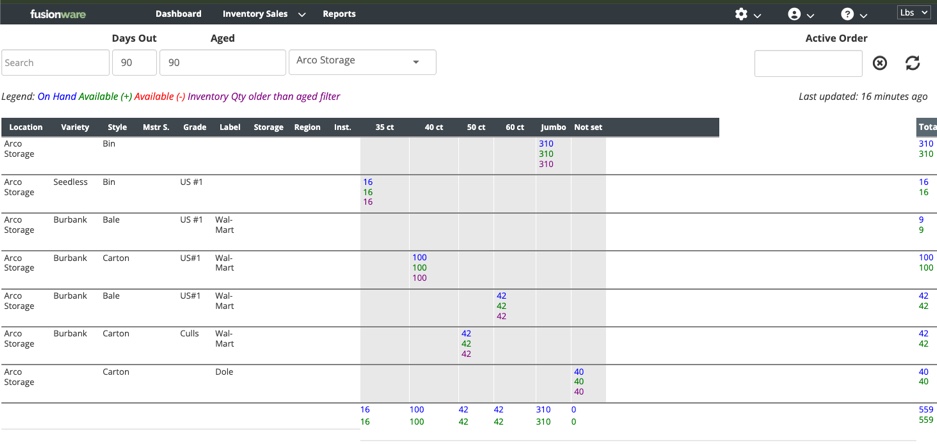
The Inventory Sales Board is a single grid showing what’s on hand, by location and product attribute, alongside what’s already been committed to open orders — so you can see real availability at a glance and sell straight off of it without leaving the page.
This page covers what the board shows, how to read a size cell, how the filters change the numbers, and how to attach inventory to an order (new or existing) directly from the grid.
On this page:
- The Inventory Sales Board Screen
- Reading a Size Cell
- Filters
- Sorting
- Selling From the Grid
- Working With an Active Order
- Keeping the Data Current
- Permissions
The Inventory Sales Board Screen
Boards > Inventory Sales opens /boards/inventory/sales.
Each row is a unique combination of Location and product attributes (Variety, Style, Master Style, Grade, Label, Storage, Region, Special Instructions — plus Commodity, if your account tracks it). Each column past those attributes is a size, and the board only lists sizes that actually have inventory or open order quantity somewhere in the data.
The bottom row of the grid is a sticky totals row that sums every size and the grand total across all currently visible rows, so it stays in view as you scroll.
Reading a Size Cell
Every size cell that has inventory or order activity shows up to three stacked numbers, color-coded to match the legend at the top of the page:
| Color | Label | What It Means |
|---|---|---|
| Blue | On Hand | Total inventory quantity currently at that location for that product/size |
| Green | Available (+) | On Hand minus open order quantity — there’s more than enough on hand to cover what’s already committed |
| Red | Available (-) | Same calculation, but open orders exceed what’s on hand — this size is oversold |
| Purple | Aged | The portion of On Hand that’s older than the Aged filter setting |
A cell that has any open orders against it (visible via its Available number) is bolded and shows a pointer cursor — it’s clickable to view or edit those orders. See Selling From the Grid.
Filters
| Filter | What It Does |
|---|---|
| Days Out | Only counts open orders whose load date falls within this many days from today (0–90) when calculating Available. Orders loading further out than this window aren’t subtracted from availability yet. |
| Aged | Sets the cutoff, in days, for the purple Aged number — inventory received longer ago than this many days (0–90) is counted as aged. |
| Location | Restricts the board to a single location. Leave blank to see every location you have access to. |
| Search | Filters rows by Location, Variety, Style, Master Style, Grade, Label, Storage, Region (and Commodity, if shown). Requires at least three characters before it starts filtering. |
Changing Days Out, Aged, or Location re-fetches the data immediately. Search filters the data already loaded in your browser, so it’s instant.
Sorting
Click any column header to sort by that attribute — click again to reverse direction, and a third click clears the sort. The arrow next to the header name shows the current direction.
Selling From the Grid
Clicking a size cell behaves differently depending on whether that cell already has open orders against it:
No Open Orders on That Cell
Clicking opens the standard Create Order flow with the product and origin location pre-filled from the row you clicked — the product picked automatically if only one product matches those attributes, or a dropdown if more than one does. Fill in quantity and rate as normal to create the order.
Cell Already Has Open Orders
Clicking opens a modal listing every order currently drawing from that size cell. For each order you can:
- Adjust the quantity or rate/FOB on an existing product line
- Switch a product line to a different matching product
- Add a brand-new product line to that order, using the product/qty/rate fields at the top of that order’s table
Closing the modal refreshes the board automatically if anything changed.
Working With an Active Order
The Active Order field (top right) lets you point the whole board at one order so every cell click adds inventory to it directly, instead of opening the create/add modal each time:
- Type or paste an order number into Active Order and it resolves to that order (a green “order set” confirmation appears, or a warning if the number isn’t found).
- With an active order set, clicking any size cell adds that product/quantity to the active order right away — the grid header and rows get a highlighted “active” style as a reminder.
- The link icon next to the field opens that order on the Order Board in a new tab.
- Click the circle-remove button to clear the active order and go back to the normal per-cell create/add behavior.
This is the fast path for building out one order across many locations or sizes without repeatedly reopening the order modal.
Keeping the Data Current
The board doesn’t auto-refresh. Two things tell you when it might be stale:
- Last updated (top right of the grid) shows how long ago the data was pulled, and updates every 30 seconds.
- “New data available” appears next to it if another user adds or changes an order line that affects inventory while you’re on the page.
Click the refresh button next to the Active Order field to reload the grid at any time.
Permissions
| Permission | What It Controls |
|---|---|
| Inventory Sales Board | Access to the Boards > Inventory Sales screen |