TMS
My Carrier Packets
Please contact a Fusionware Representative to get started
Click to expand
| Overview |
Description - Click on pictures to expand |
| Settings > Company Profile > Integrations |
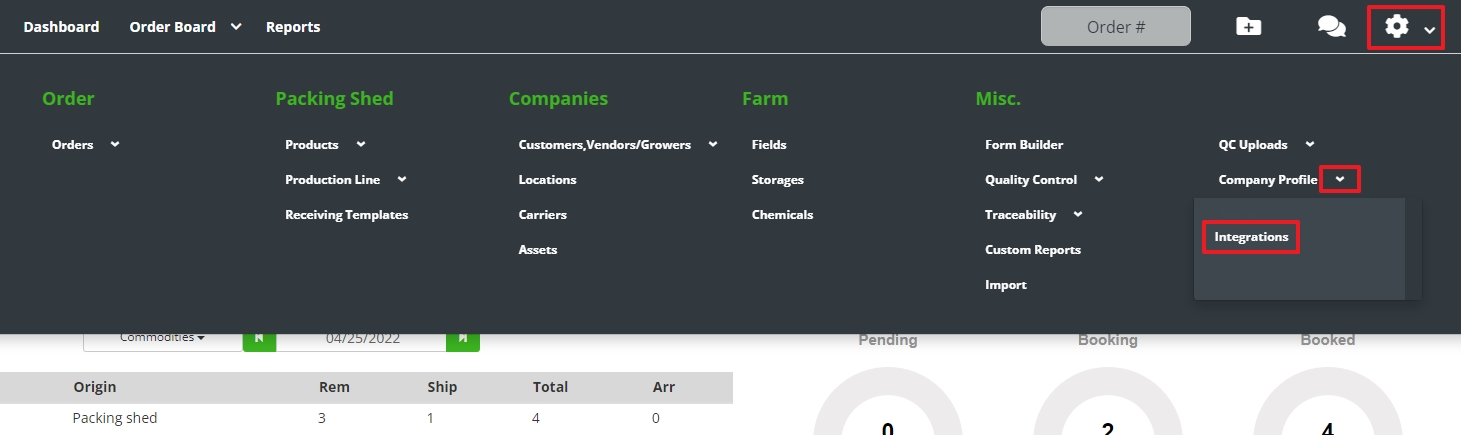 |
| My Carrier Packets > Modify |
 |
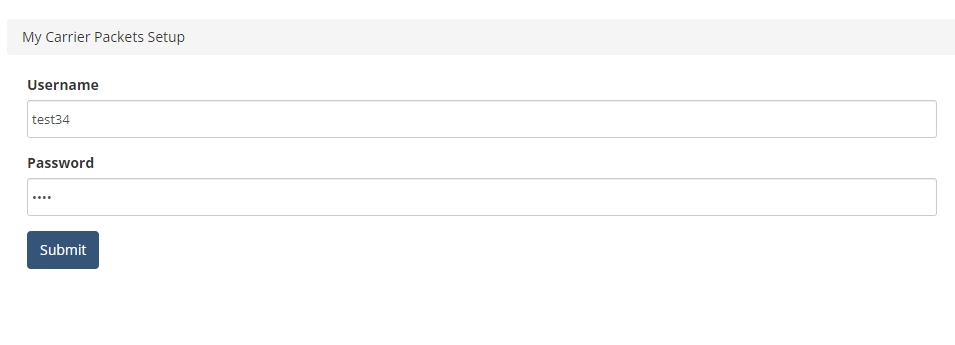
| Enter Login for My Carrier Packets |
 |
| Carrier MC# & DOT# |
If you have existing Carriers in Fusionware, please verify that all have both the MC# & DOT# put in. After starting the My Carrier Packets Integration you will enter all new Carriers into My Carrier Packets and then they will sync with Fusionware. If a duplicate MC# or DOT# exists in Fusionware it will only update the existing Carrier. If the MC/DOT # does not exists in Fusionware it will create a new Carrier. 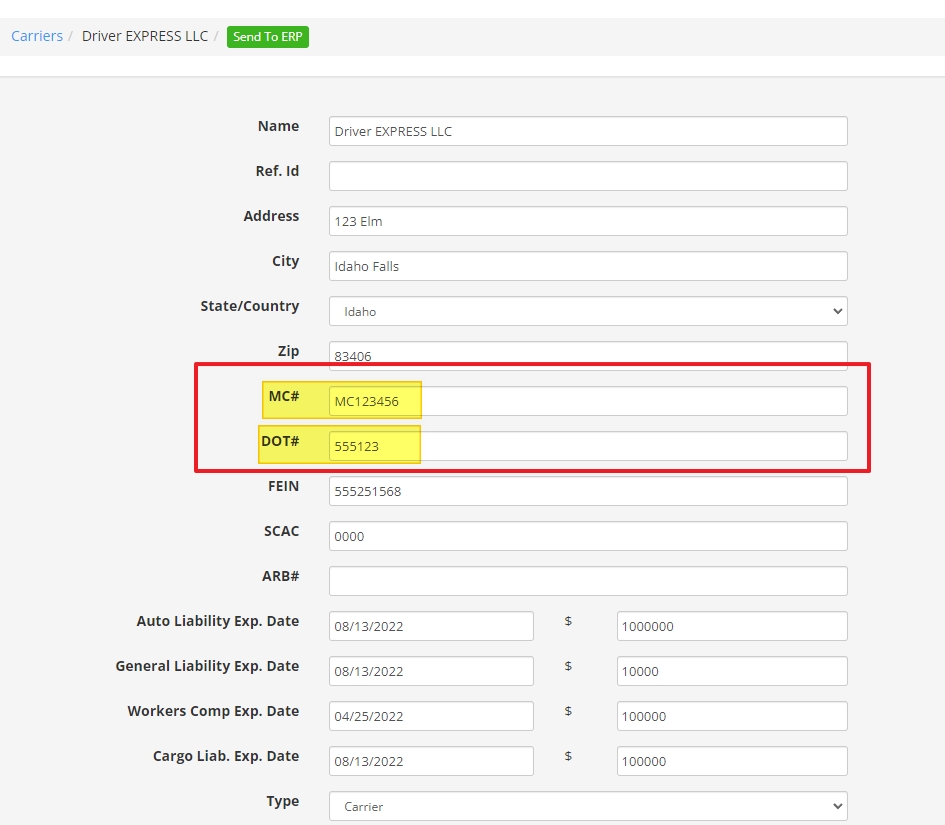 |
| Data Imported |
Company information, Contacts, Documents and Insurance information will import from My Carrier Packets 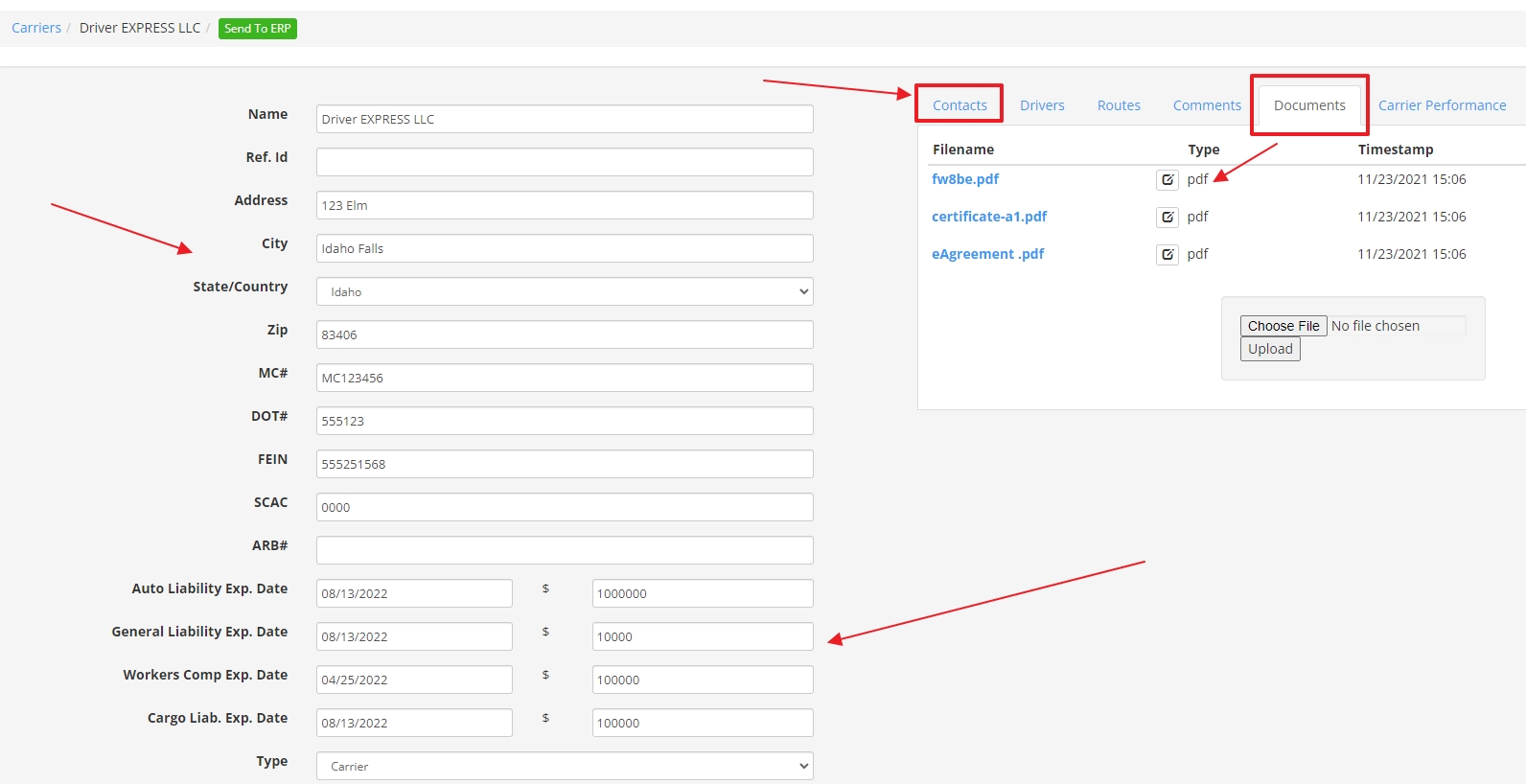 |
| Flags |
If My Carrier Packets updates the Carrier as Flagged a flag will appear in multiple places if that Carrier is on an order. You will also be prevented from adding that Carrier to an order.  |
| A Flagged Carrier |
If My Carrier Packets flagged the Carrier there will be Carrier Notes. You can add/modify carrier notes as well. 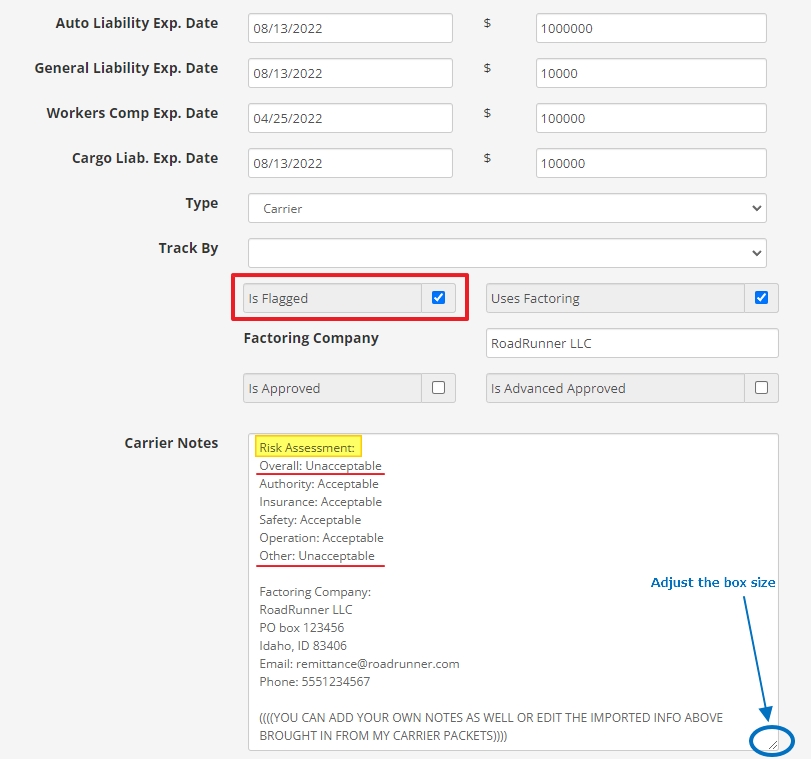 |
| Factoring Company |
If a Carrier Uses Factoring that Factoring Company information will import into Carrier Notes from My Carrier Packets. It is advised that you create a Carrier with that Factoring Company information inside Fusionware. 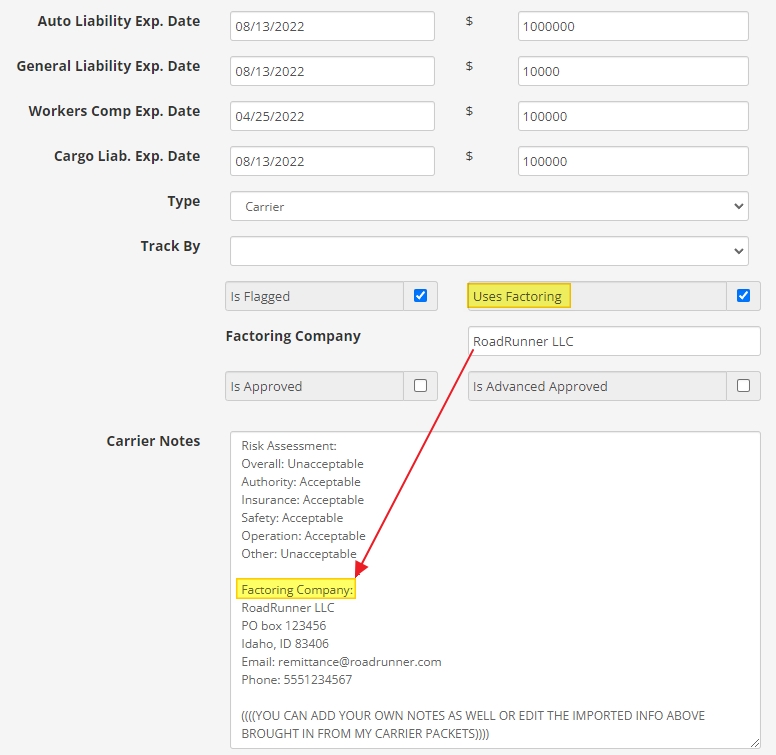 |
| Approved Carriers |
AFTER A CARRIER HAS BEEN PULLED IN FROM MY CARRIER PACKETS, THEY MUST BE MARKED APPROVED TO ADD TO AN ORDER The “Is Flagged” must be unchecked as well. The User that checked “Approved” will be recorded. 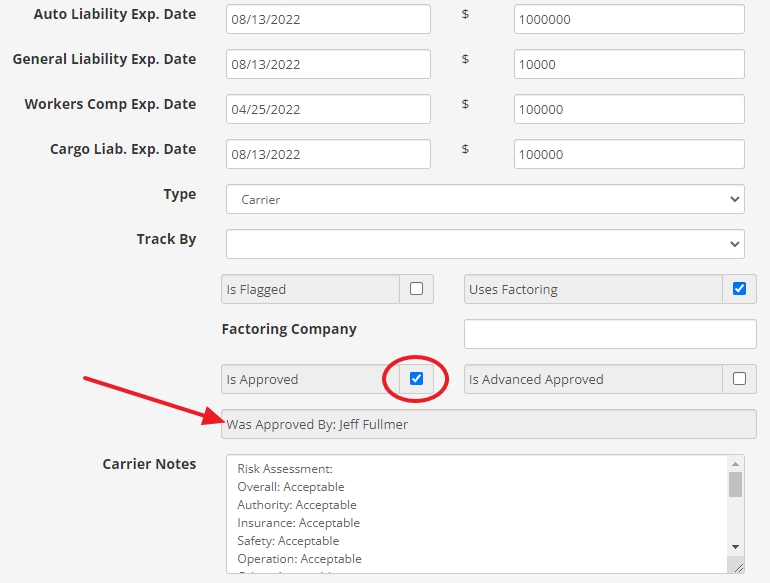 |
| Carriers Section |
You can easily see in your Carriers list those that are Approved and flagged. You can also filter by Carrier status as well. 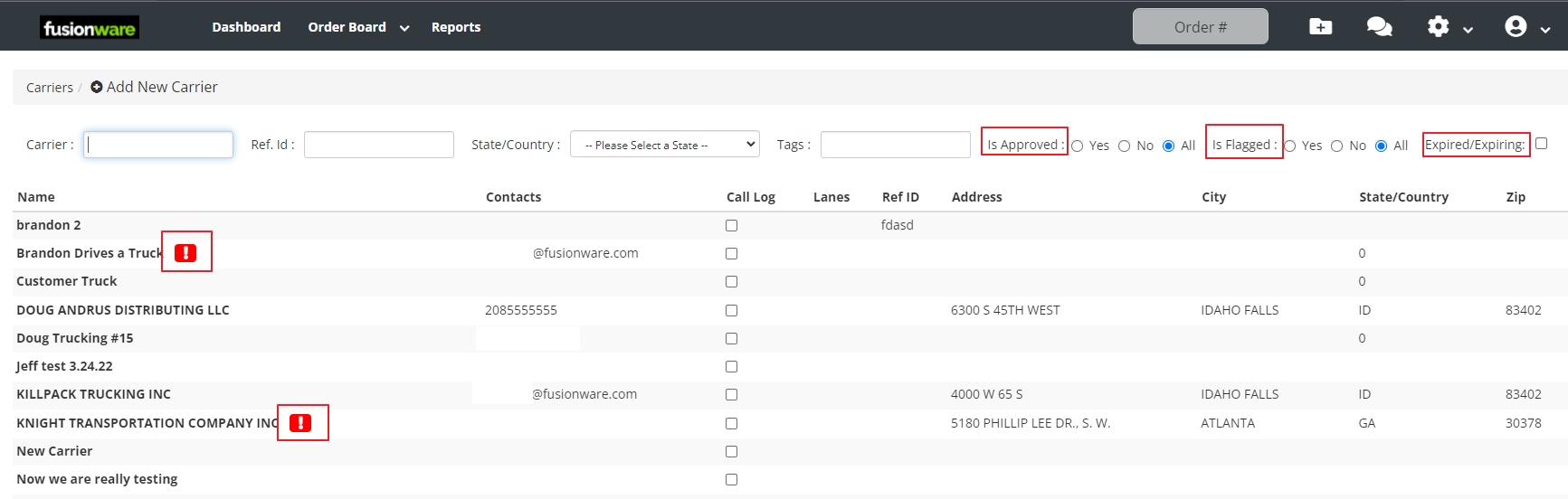 |
MacroPoint
Please contact a Fusionware Representative to get started
Click to expand
| Overview |
Description - Click on pictures to expand |
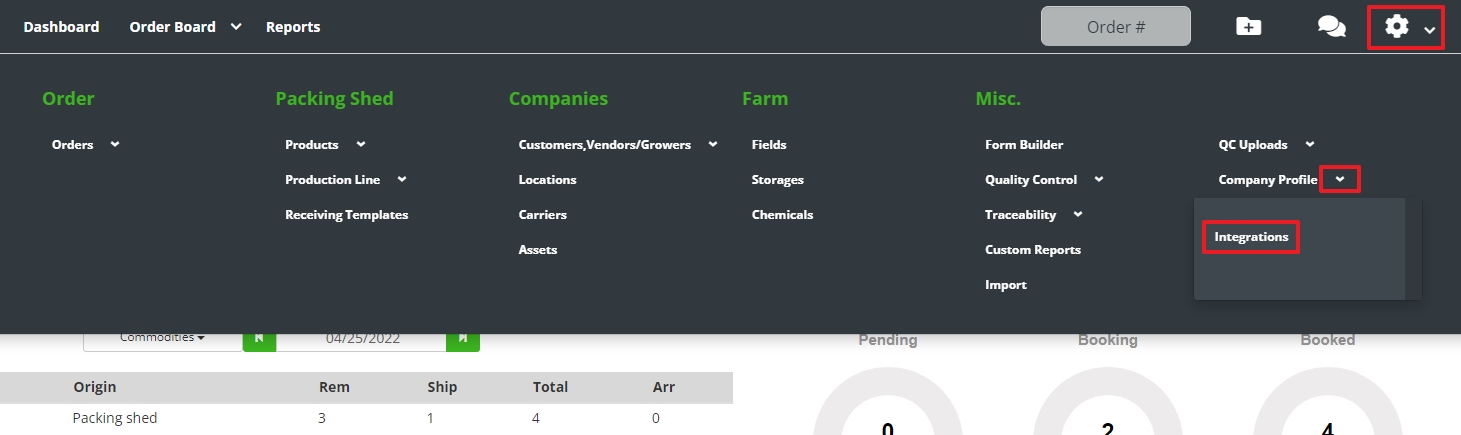
| Settings > Company Profile > Integrations |
 |
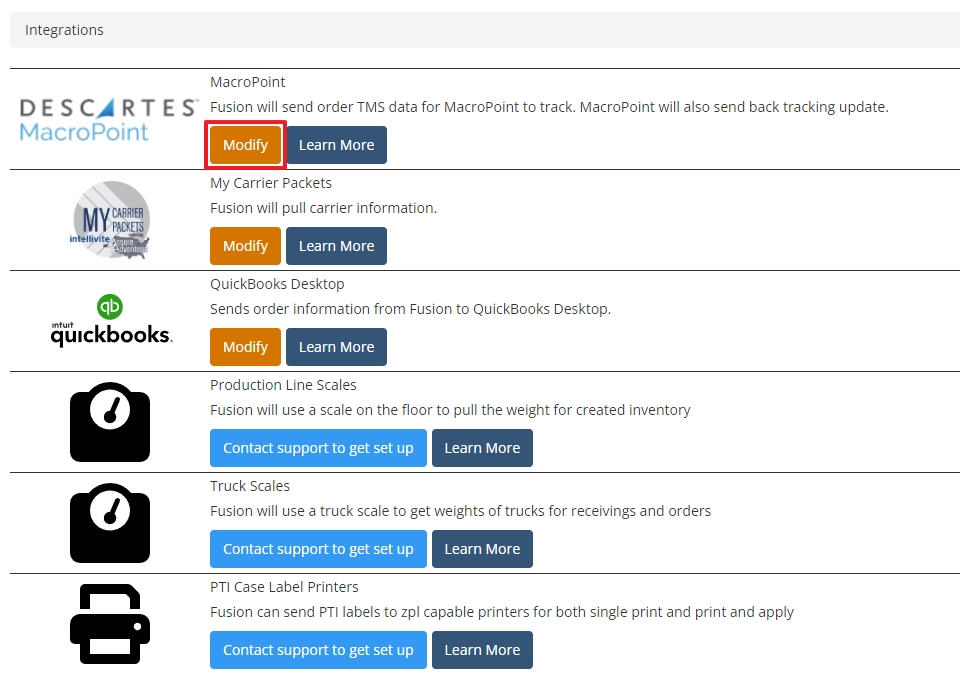
| MacroPoint > Modify |
 |
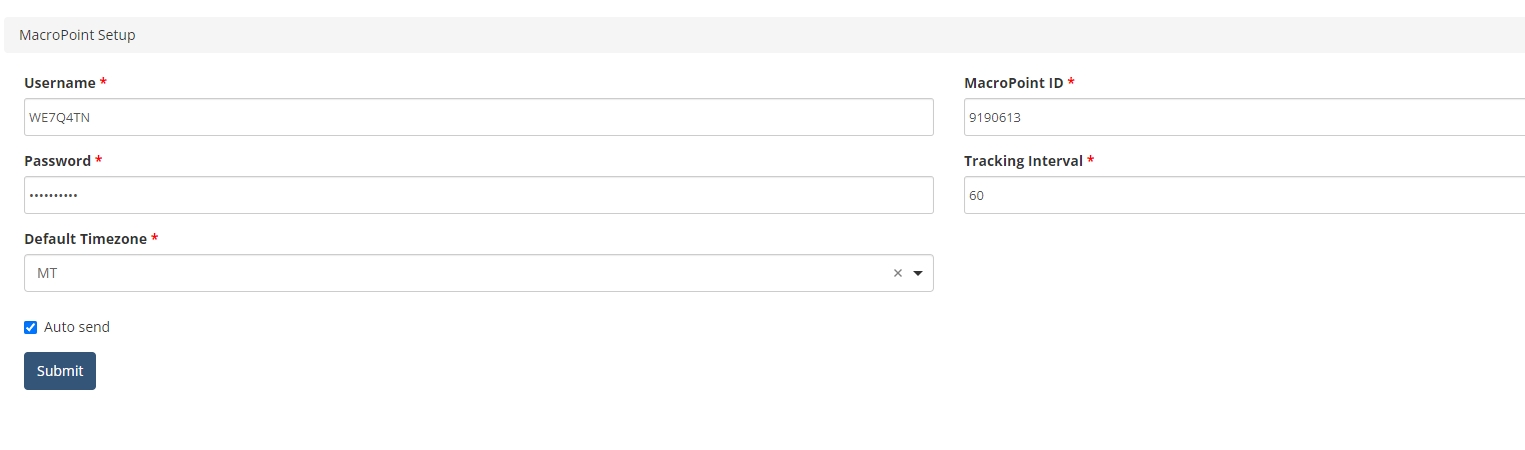
| Enter/Edit Credentials & Settings for MacroPoint |
 |
| Origin/Shipping Location Timezone |
In the MacroPoint setup you can select the default timezone. You can also adjust the timezone for each shipping location Origin. If no Timezone is selected on the Origin location MacroPoint will use the default selected in the previous step in the MacroPoint setup inside Fusionware. 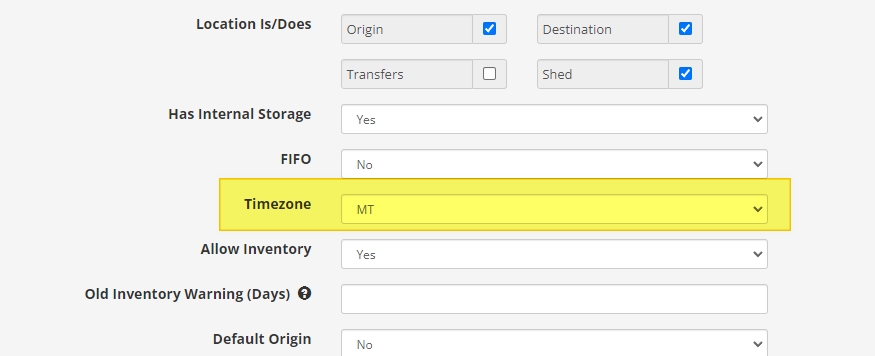 |
| Order Carrier Information |
Add a Broker/Carrier inside an order and you must enter driver information of Mobile #, Tractor #, or Trailer # 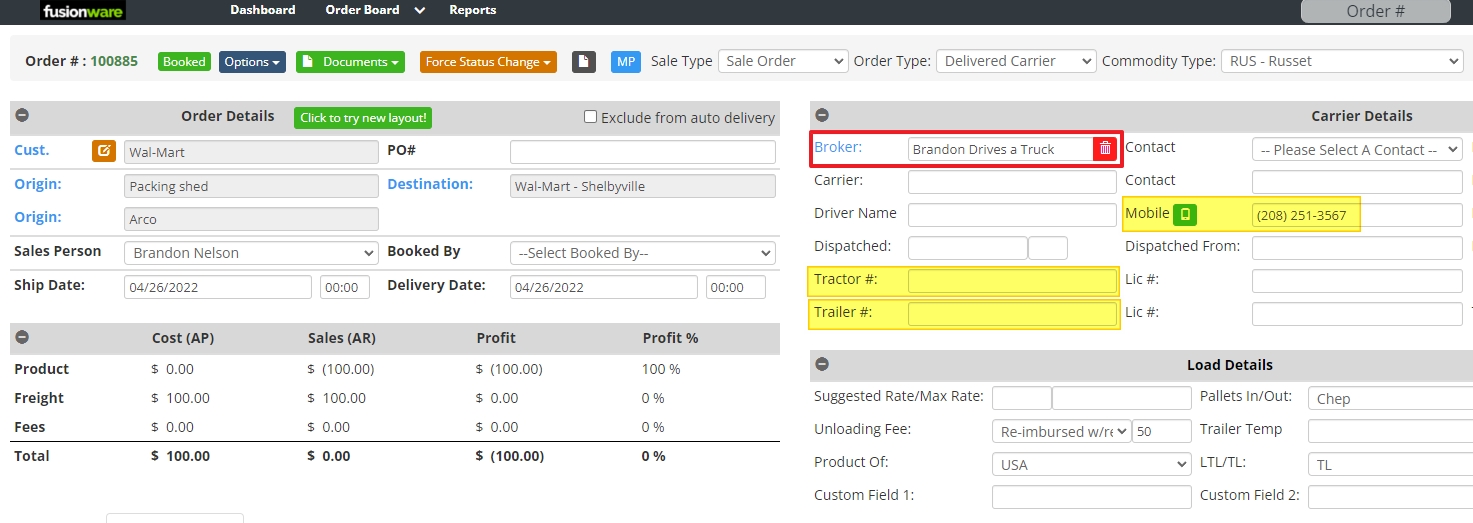 |
| Select MP In The Order |
Sending to MacroPoint notification will appear 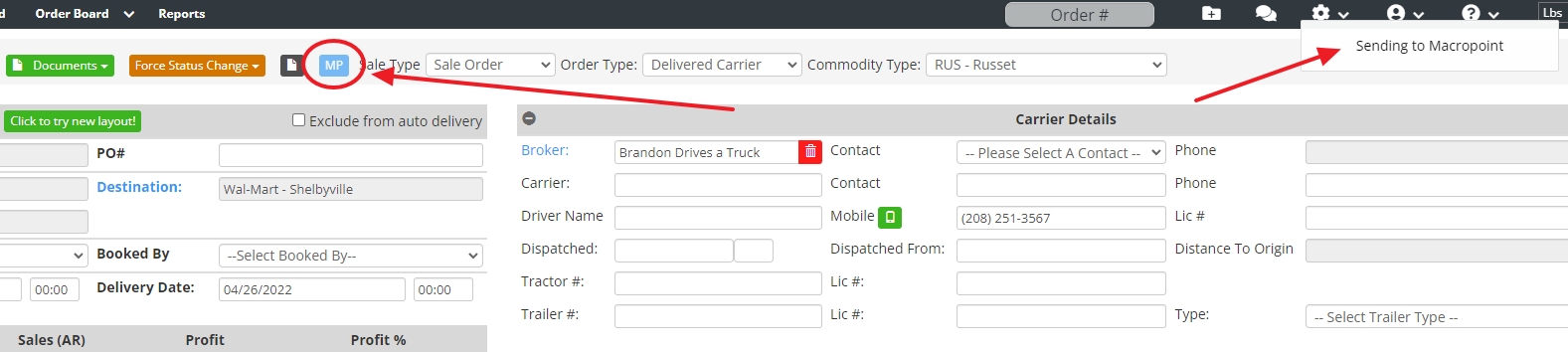 |
| A Successful Connection |
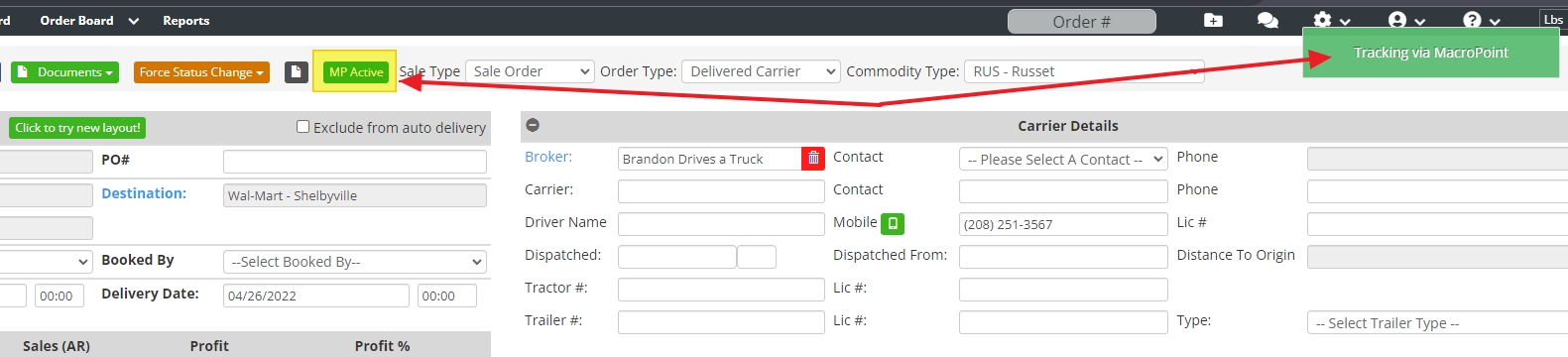 |
| New Driver Text Message |
If the driver is new to MacroPoint and not registered, MacroPoint will send them sign up & download information if their number is inside the Order 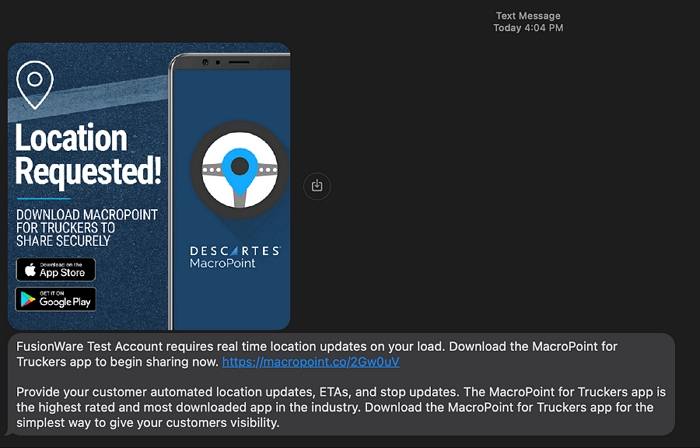 |
| The 3 MacroPoint Statuses |
MP & blue when not active, MP Active & green when active and prior to delivery, MP Complete when load marked as Delivered  |
| Order & Shipping Boards In-Transit View |
Filter by In-Transit to see the Tracking comments option for all orders being tracked by MacroPoint.  |
| Tracking Comments |
Selecting the Order Tracking Comments on the Order Board will display the Order’s Tracking Comment log. This will also display the messages from MacroPoint. 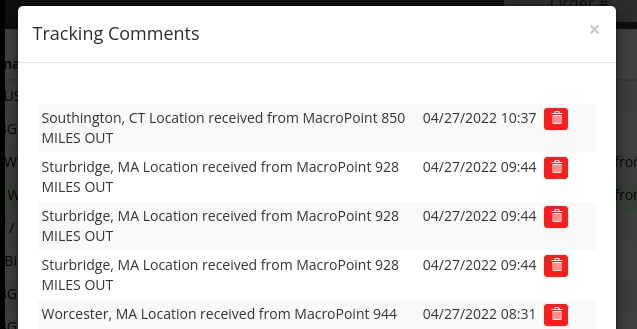 |
PC Miler
Please contact a Fusionware Representative to get started
- Use PC Miler to calculate any mileage calculations in Fusionware instead of our built in Google Maps calculations.
- Additional charges may apply.